

Inhaltsverzeichnis
BackWPup Pro offers the option to encrypt backups for upload to the backup target—a great feature for the security of your data and that of your customers and users.
And – because of the GDPR regulations – an absolute must for all those that store personal information in their backups and are based in the EU or have personal data of users residing in the EU in their WordPress installation.
Inhaltsverzeichnis
Was genau ist ein verschlüsseltes Backup, und warum sollten Sie diese Funktion nutzen?
Whenever you create a backup with BackWPup or any other backup plugin, the result is usually uploaded to a backup target. That could be your FTP server, Google Drive, or any other cloud service.
Sollte jemand Zugriff auf das Backup-Ziel erhalten, kann er die Daten in Ihrem Backup problemlos einsehen. Unverschlüsselte Backups stellen eine Sicherheitslücke dar und bergen das Risiko, dass Ihre Daten sowie die Ihrer Kunden und Nutzer in die falschen Hände geraten.
Die Verschlüsselung einer Sicherung bedeutet, dass die Daten durch einen Verschlüsselungsprozess. Vor der Verschlüsselung müssen Sie einen Schlüssel (oder ein Schlüsselpaar) generieren. Dieser Schlüssel muss dann an einem sicheren Ort aufbewahrt werden. Der Schlüssel wird im Verschlüsselungsalgorithmus benötigt, um die Daten unlesbar zu machen und sie später wieder zu entschlüsseln. Nur wer im Besitz des Schlüssels ist, kann das Backup wieder lesbar machen.
Achtung: Wenn Sie den Schlüssel verlieren, können Sie nicht mehr auf die Daten zugreifen.
Verschlüsselungsverfahren
BackWPup offers two procedures for encryption: one symmetrical and one asymmetrical procedure.
The symmetrical procedure works with a single key and is based on the popular AES 256 procedure (AES = Advanced Encryption Standard). The same key is used for encrypting and decrypting.
Das asymmetrische Verfahren nutzt den RSA-Algorithmus und das AES-Verfahren. Hier generieren wir einen zufälligen AES-256-Schlüssel, der dann für die Verschlüsselung verwendet wird. Zusätzlich wird der AES-Schlüssel selbst anschließend mit dem RSA-Verfahren verschlüsselt (Hybridverfahren).
The RSA procedure requires a key pair consisting of a public key and a private key. These can be generated via BackWPup Pro. The private key must be kept in a safe place and must only be known to you.
Wenn Sie sich nicht sicher sind, welches der beiden Verfahren Sie wählen sollen – hier sind die Vor- und Nachteile:
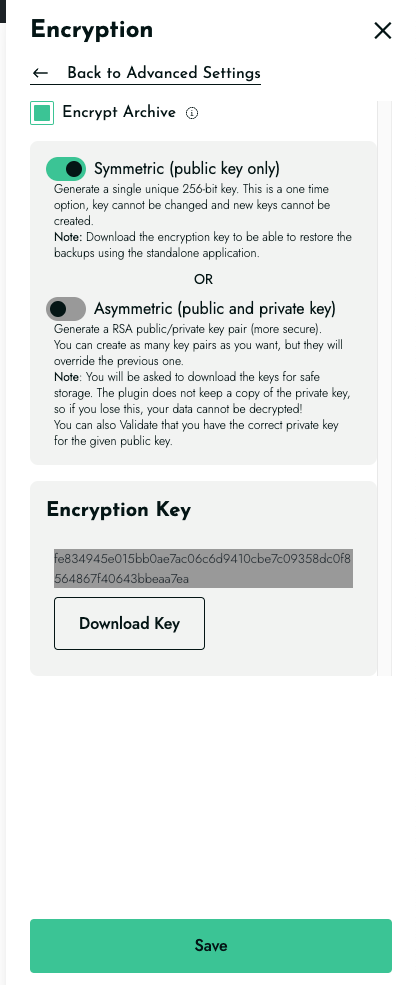
- The symmetric procedure is easier to use because we simply store the key in the BackWPup Pro database once it has been generated. You don’t have to worry about keeping the key safe: you can copy-paste the key value that is available in the BackWPup Pro → Settings in the Encryption tab. But anyway we always strongly suggest creating and keeping a copy of your key. Your backup is safe as long as the database of your WordPress installation doesn’t become compromised: if your database is damaged, you could lose the key, and so you could not be able anymore to decrypt your backup unless you have a copy of the key. So, after the key is generated in your system, it has to be downloaded using the related button, otherwise the encryption cannot be properly activated.
- Das asymmetrische Verfahren ist die sicherere Option, da es zwei Schlüssel verwendet. Sie sind der Einzige, der einen dieser beiden Schlüssel besitzt. Nachteil: Sie müssen für die sichere Aufbewahrung des privaten RSA-Schlüssels sorgen. Wenn Sie den Schlüssel verlieren, können Sie nicht mehr auf Ihre Daten zugreifen. Auch in diesem Fall ist nach der Generierung das Herunterladen des privaten Schlüssels erforderlich.
Erstellen von Verschlüsselungsschlüsseln und Verschlüsseln von Backups
You will first have to generate the key before you can create an encrypted backup with BackWPup Pro:
- Go to BackWPup Pro → Settings → Advance Settings and then select the Encryption tab.
- Wählen Sie das gewünschte Verschlüsselungsverfahren aus: symmetrisch oder asymmetrisch.
- Klicken Schlüssel generieren.
- If you have selected the symmetric method, a single key will be generated and stored in BackWPup Pro. You should also save it to another location to be on the safe side.
- If you have selected the asymmetric method, BackWPup generates an RSA key pair. Both keys will be offered to you for download. You should download the private key at least. Next, click Use these keys.
- Danach können Sie oben die Option „Archiv verschlüsseln“ aktivieren.
- Änderungen speichern und verschlüsselt sichern
Wiederherstellen eines verschlüsselten Backups
A backup is there to be able to restore your site in case of an emergency. Our BackWPup Pro Restore feature can restore both encrypted and unencrypted backups. Simply follow our BackWPup Restore instructions.
Eine Sicherung entschlüsseln
In the event that you want to decrypt an encrypted backup, please download it from the backend of your WordPress installation as follows:
- Go to BackWPup Pro → Settings.
- Bewegen Sie den Mauszeiger über das gewünschte Backup.
- Klicken Sie auf „Herunterladen“.
- Das Backup wird entschlüsselt. Wenn Sie die asymmetrische Verschlüsselungsmethode gewählt haben, müssen Sie Ihren privaten RSA-Schlüssel in das sich öffnende Fenster eingeben;andernfalls müssen Sie den symmetrischen Schlüssel eingeben.
Note: You will need BackWPup Pro to decrypt the backup. You will not be able to decrypt the backup with any other tool.