

Table of Contents
BackWPup allows you to include external folders or specific file extensions in your backups, giving you the flexibility to back up everything your site needs, not just core WordPress files.
How to Include a Folder in Backup
Open your Backup Job and click on Data. Click the Configure (gear icon) next to the Files card, and scroll down to the Include in backup section.
(Note: This option is not displayed for Database-only backups.)
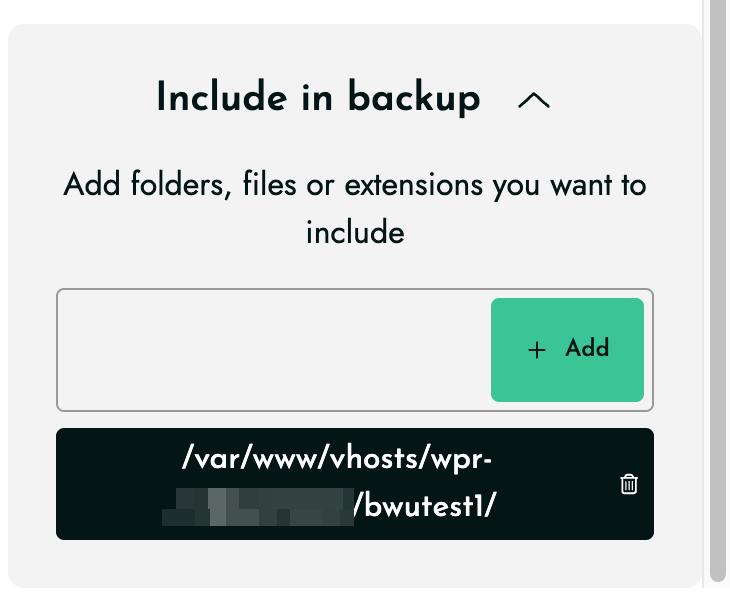
Simply enter the absolute folder path (e.g., /abc.com/public_html) or file extension (e.g., .pdf, .csv). Click Add +, and then save your settings.
Important
The folder path must be the real server path of the folder.
If the path is incorrect, BackWPup may show warnings such as:
"is not a folder and will be ignored"How to Find the Correct Folder Path
BackWPup requires your true server filesystem path. Here are two ways to find your exact path:
Method 1: Using WordPress Site Health
You can find your absolute server path directly from your WordPress dashboard:
- In your WordPress dashboard, go to Tools > Site Health.
- Click on the Info tab at the top.
- Scroll down and click to expand the WordPress Constants section.
- Look at the value next to ABSPATH. This is your true server root path.
For example, if your ABSPATH shows /var/www/vhosts/example.com/httpdocs/, and your custom folder (like backup-files) is right outside of it, your final path to enter in BackWPup would be /var/www/vhosts/example.com/backup-files/.
Method 2: Using a PHP Test File
If you cannot access Site Health, you can find the path using a quick test file:
- Create a file named
path-test.phpinside your main WordPress folder. - Add this exact code to the file:
<?php echo __DIR__; ?> - Open that file in your browser:
https://yourdomain.com/path-test.php
Your browser will display your true server path. Once you have the path, remember to delete the path-test.php file from your server.
Verify Your Backup
After saving your new paths, run the backup job manually. Check the job logs to confirm your custom folders and files are successfully included without any warnings.