

Inhaltsverzeichnis
The BackWPup restore feature allows the simple restore of your WordPress backup in only a few steps. In this documentation, we explain how you restore your WordPress backup with the BackWPup restore feature.
Attention: Only backups made with BackWPup are restorable with the BackWPup restore feature.
Restoring your WordPress site with BackWPup is streamlined through an intuitive interface that allows you to quickly revert your site to a previous state using backups stored in your history.
Inhaltsverzeichnis
Use the BackWPup restore feature
- Gehe zu
BackWPup > SettingsGehen Sie zu Ihrem Dashboard, um die Liste der verfügbaren Backups anzuzeigen.
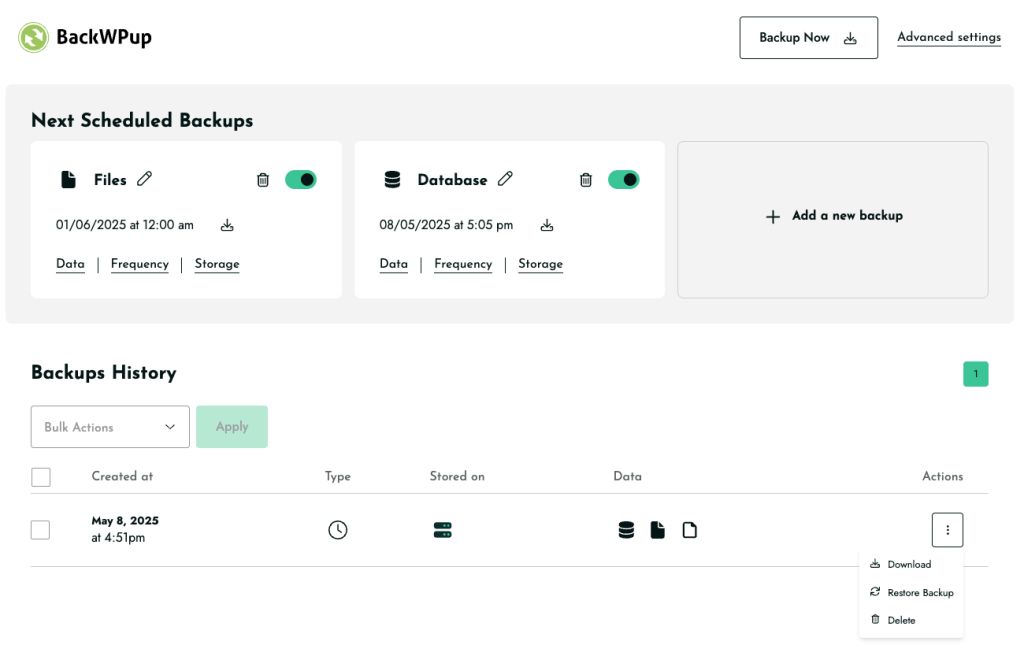
- For Pro users, simply click on the ‘Restore Backup’ button next to the backup you wish to restore. The process begins automatically without additional steps.
Free Version Users: In the free version of BackWPup, users must first download their backup file and then manually upload it to the restoration page to initiate the process.
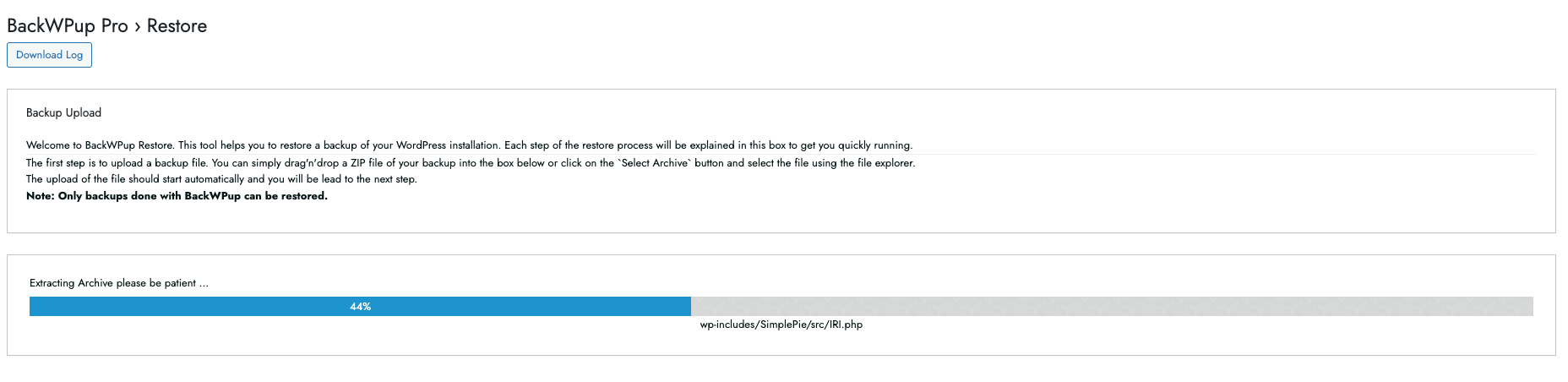
Achtung: Achten Sie darauf, welches Backup Sie wiederherstellen. Das wiederhergestellte Backup überschreibt Ihre Website. Überprüfen Sie daher, ob Sie das richtige Backup hochgeladen haben.
- Sobald das Backup-Archiv erfolgreich hochgeladen wurde, müssen Sie sich zwischen diesen beiden Möglichkeiten entscheiden:
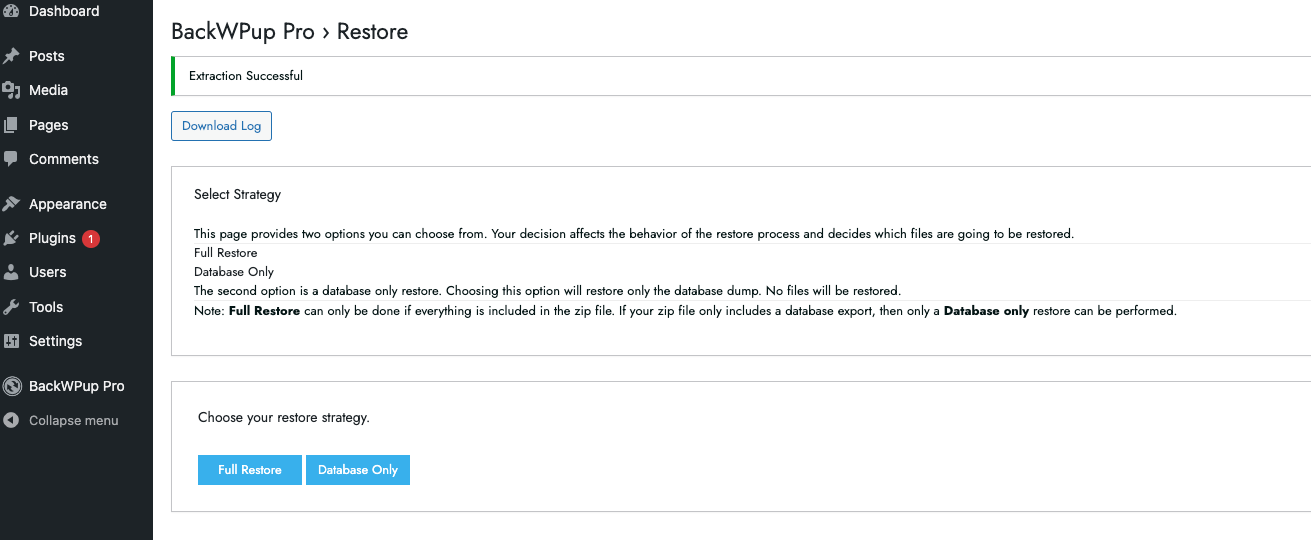 Nun können Sie wählen, ob Sie eine Datenbankwiederherstellung oder eine vollständige Wiederherstellung durchführen möchten. Wenn Sie sich für eine Datenbankwiederherstellung entscheiden, wird nur der Datenbank-Dump wiederhergestellt. Wenn Sie sich für eine vollständige Wiederherstellung entscheiden, wird die gesamte Installation mit allen Dateien wiederhergestellt. In dieser Dokumentation führen wir eine vollständige Wiederherstellung.
 - Als Nächstes müssen Sie einige Datenbank-Einstellungen ermitteln und angeben, damit eine funktionierende Verbindung zu Ihrer Datenbank hergestellt werden kann.
This information is pre-filled if you’re restoring on same site but will be empty if you’re restoring on different URL. Enter the Database Host, the Database Name, the Database User and the Database Password. You can find all relevant database connection settings in the wp-config.php. However, you can also ask your hoster. In this documentation we take the data from the wp-config.php. You find the file in the zip file of your backup. We also wrote a documentation about the wp-config.php.
- Wenn Sie alle Daten eingegeben haben, klicken Sie auf die Schaltfläche Verbindung testen. Wenn der Test erfolgreich war, erhältst du die Informationen Verbindung zur Datenbank hergestellt.
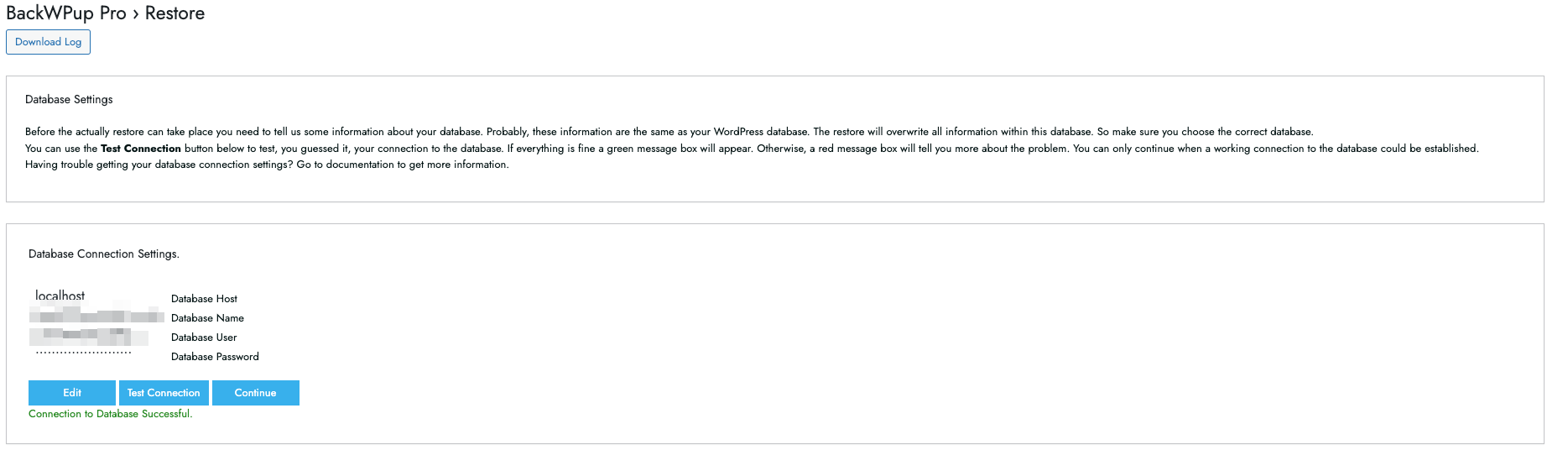
- Now click the button Continue. You just reached the last step. When you want to restore your backup, click Start. BackWPup now restores your backup. This may take a few minutes in case you make a full backup.
- When the restore was successful, the information below is displayed. If BackWPup had any problems during the restore process, you can download the log file directly. There, the whole restore process is documented. So the troubleshooting is much easier.
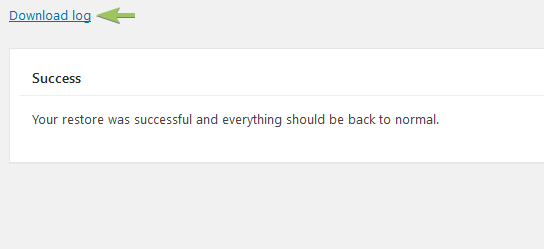
Die Wiederherstellung war erfolgreich.
Eine Sicherung direkt wiederherstellen
Falls Sie eine Wiederherstellung aus einem älteren Backup durchführen müssen, das nicht in Ihrem Verlauf aufgeführt ist, können Sie über diese URL direkt auf die Wiederherstellungsseite zugreifen: admin.php?page=backwpuprestore. Hier können Sie Ihre Sicherungsdatei hochladen, um die Wiederherstellung zu starten.
I have no access to my WordPress installation. Well, how shall I use the BackWPup restore feature?
In case you have no access at all, our BackWPup stand-alone app is your rescue. Check out this documentation to find out how you install and use this app.
BackWPup Pro licence key is missing after restoring the website
If the licence key is not activated after a restore or you have problems to activate it, please read the tutorial How do I activate my BackWPup Pro licence?
BackWPup restore feature: Important files and directories
All readers who are interested in technical things should read the following section. That’s because we want to explain what happens in the BackWPup’s background when restoring a backup. As soon as you select the menu link Restore, the plugin installs the directory wp-content/uploads/backwpup-restore on your server.
Wir möchten die Funktion einiger Dateien erläutern, die in diesem Verzeichnis gespeichert sind:
Restore.log
Diese Datei enthält alle Informationen, die während des Wiederherstellungsprozesses protokolliert werden. Dazu gehören der Datenbankimport, die kopierten Verzeichnisse sowie weitere Informationen, die für die Fehlerbehebung wichtig sind. Diese Protokolldatei dient dazu, einen schnellen Support zu ermöglichen. Anhand dieser Datei können wir uns einen schnellen Überblick über den Wiederherstellungsprozess verschaffen.
Restore.dat
Diese Datei enthält den Status des Wiederherstellungsprozesses sowie einige Informationen, die erforderlich sind, um zu wissen, wo die Daten entpackt werden sollen, wo sich der Datenbank-Dump befindet und so weiter.
Upload-Verzeichnis
Das ist das Verzeichnis, in dem das hochgeladene Archiv gespeichert wird. Du findest das Verzeichnis hier: wp-content/uploads/backwpup-restore/uploads.
Verzeichnis extrahieren
In diesem Verzeichnis wird die hochgeladene Datei entpackt. Du findest das Verzeichnis hier: wp-content/uploads/backwpup-restore/extract.
.htaccess
Diese Datei dient dazu, einen direkten Zugriff auf das Wiederherstellungsverzeichnis zu verhindern.
.nicht-sichern
That’s a file that prevents that the plugin makes a backup of the temporary restore directory. The wp-content/uploads/backwpup-restore is a temporary directory that includes the uploads as well as all extracted archives and all other files of which the user needn’t have a backup.