

Before continuing, make sure you have already completed Step 2.1: Make your WordPress site accessible to your AI assistant and have the following information ready:
- Website URL
- WordPress username
- Application Password
Step 1: Open Claude Desktop Configuration

- Open Claude Desktop
- go to Settings → Developer
- Click Edit config
Claude Desktop will open the folder containing the configuration file.
Open the claude_desktop_config.json file using your preferred text editor, such as:
Step 2: Review Your Existing Configuration
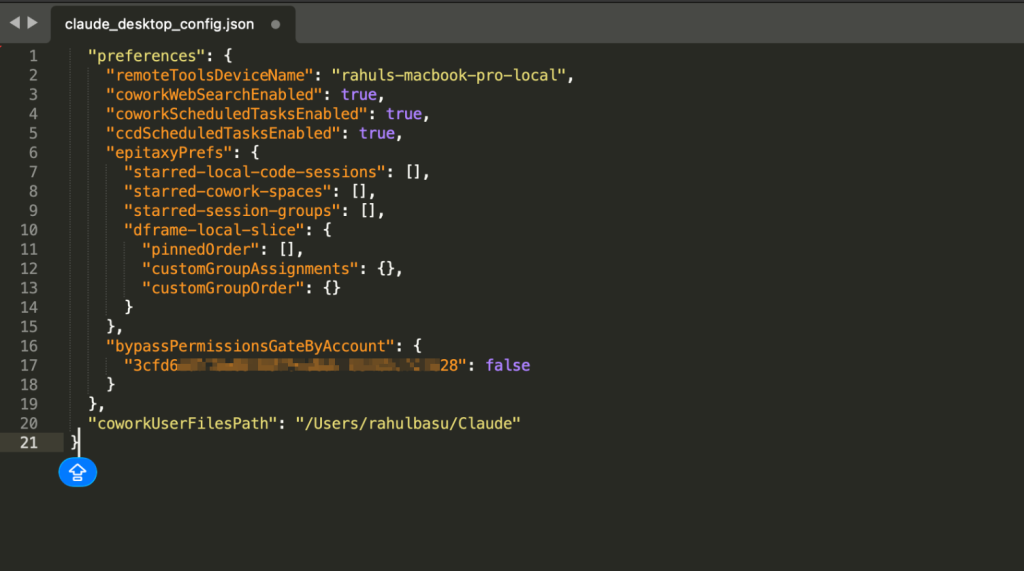
If this is your first MCP connection, the file may already contain Claude Desktop settings and preferences. This is expected.
Do not delete any existing settings.
Step 3: Add Your WordPress Configuration
Copy the configuration below and replace the placeholder values with your own website details.
{
  "mcpServers": {
    "your-website-domain": {
      "type": "stdio",
      "command": "npx",
      "args": [
        "-y", "@automattic/mcp-wordpress-remote@latest"
      ],
      "env": {
        "WP_API_URL": "https://your-website-domain/wp-json/mcp/mcp-adapter-default-server",
        "WP_API_USERNAME": "your-wordpress-username",
        "WP_API_PASSWORD": "your-application-password",
        "OAUTH_ENABLED": "false"
      }
    }
  }
}
Replace the following placeholders:
| Placeholder | Description |
|---|---|
your-website-domain |
Your website domain |
your-wordpress-username |
Your WordPress username |
your-application-password |
The Application Password generated in Step 2.1 |
Step 4: Review the Updated Configuration File
After adding the configuration, your file should contain both:
- The new mcpServers section
- Your existing Claude Desktop settings
Your configuration file should look similar to this:
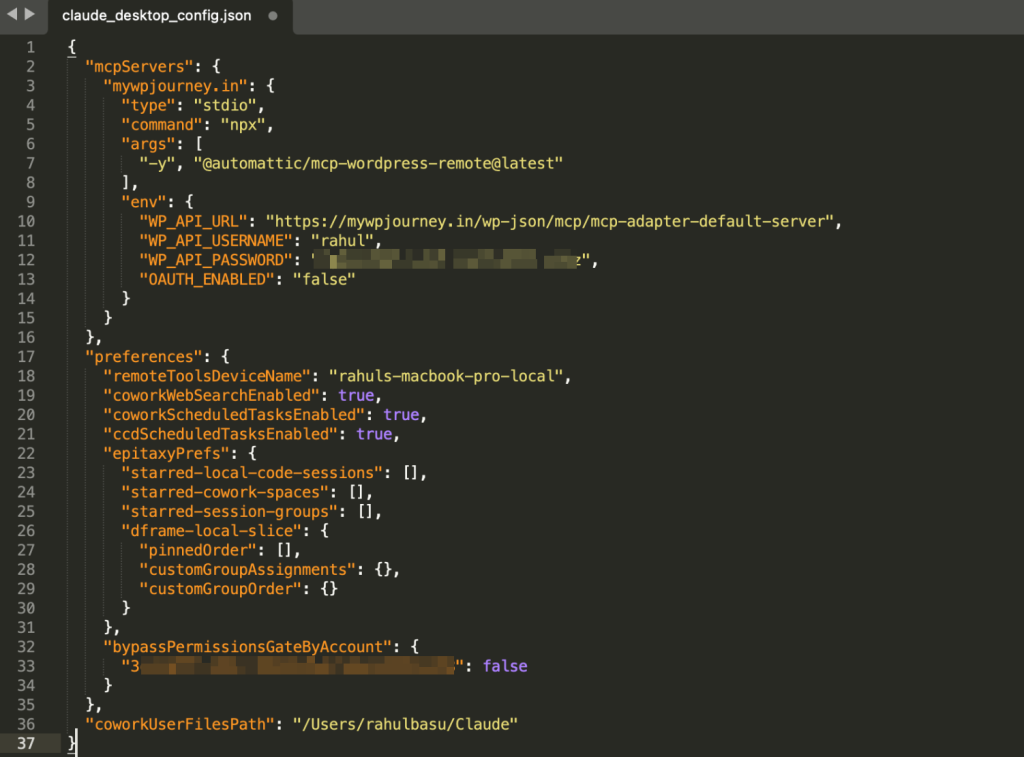
| ⚠️ Important: Do not replace the entire file. Add the mcpServers section alongside your existing configuration. |
Platform Requirements
macOS
No additional setup is required.
Windows
The MCP connection uses the npx command.
If npx command is unavailable, install Node.js and restart Claude Desktop before continuing.
Step 5: Save and Restart Claude Desktop
Step 6: Verify the Connection
Open a new Claude conversation and ask:
What MCP tools are available from my WordPress site?
Claude should display the available WordPress and BackWPup MCP abilities associated with your website.

Next Step
Return to the main guide and continue with Step 3: Get Started to explore example prompts and MCP abilities.