

Antes de continuar, asegúrate de que ya has completado el paso 2.1: «Hacer que tu sitio WordPress sea accesible para tu asistente de IA » y de que tienes a mano la siguiente información:
- URL del sitio web
- WordPress nombre de usuario
- Contraseña de la aplicación
Paso 1: Abre la configuración de Claude Desktop

- Abrir Claude Desktop
- Ve a Ajustes → Desarrollador
- Haz clic en «Editar configuración»
Claude Desktop abrirá la carpeta que contiene el archivo de configuración.
Abre el archivo claude_desktop_config.json con tu editor de texto preferido, como por ejemplo:
Paso 2: Revisa tu configuración actual
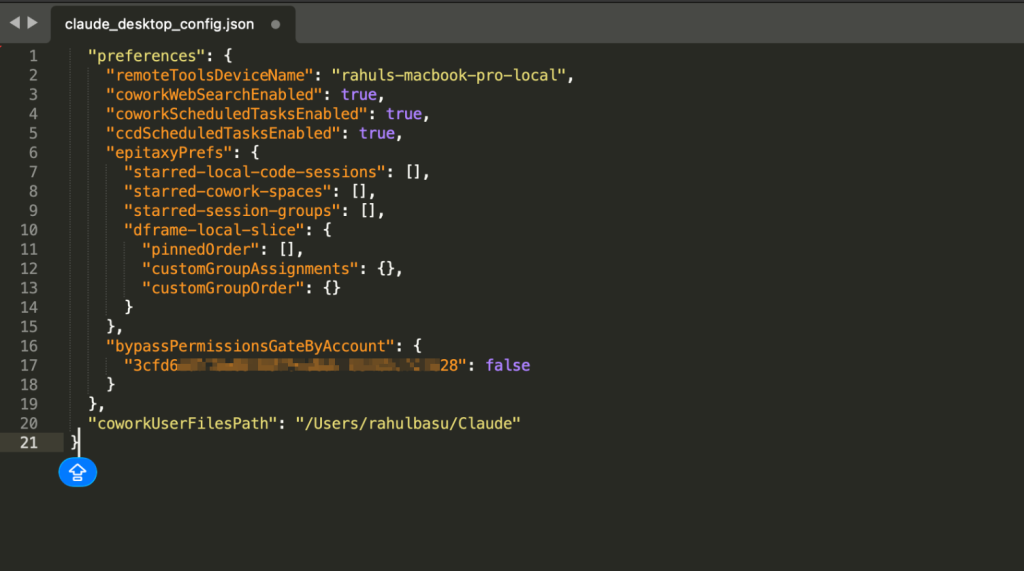
Si es la primera vez que te conectas a MCP, es posible que el archivo ya contenga la configuración y las preferencias de Claude Desktop. Es lo normal.
No borres ninguna configuración existente.
Paso 3: Añade tu configuración de « WordPress »
Copia la configuración que aparece a continuación y sustituye los valores de los marcadores de posición por los datos de tu propia página web.
{
  "mcpServers": {
    "your-website-domain": {
      "type": "stdio",
      "command": "npx",
      "args": [
        "-y", "@automattic/mcp-wordpress-remote@latest"
      ],
      "env": {
        "WP_API_URL": "https://your-website-domain/wp-json/mcp/mcp-adapter-default-server",
        "WP_API_USERNAME": "your-wordpress-username",
        "WP_API_PASSWORD": "your-application-password",
        "OAUTH_ENABLED": "false"
      }
    }
  }
}
Sustituye los siguientes marcadores de posición:
| Marca de posición | Descripción |
|---|---|
your-website-domain |
El dominio de tu página web |
your-wordpress-username |
Tu nombre de usuario de WordPress |
your-application-password |
La contraseña de la aplicación generada en el paso 2.1 |
Paso 4: Revisar el archivo de configuración actualizado
Una vez añadida la configuración, tu archivo debería contener ambos:
- La nueva sección «mcpServers»
- Tu configuración actual de Claude Desktop
Tu archivo de configuración debería tener un aspecto similar a este:
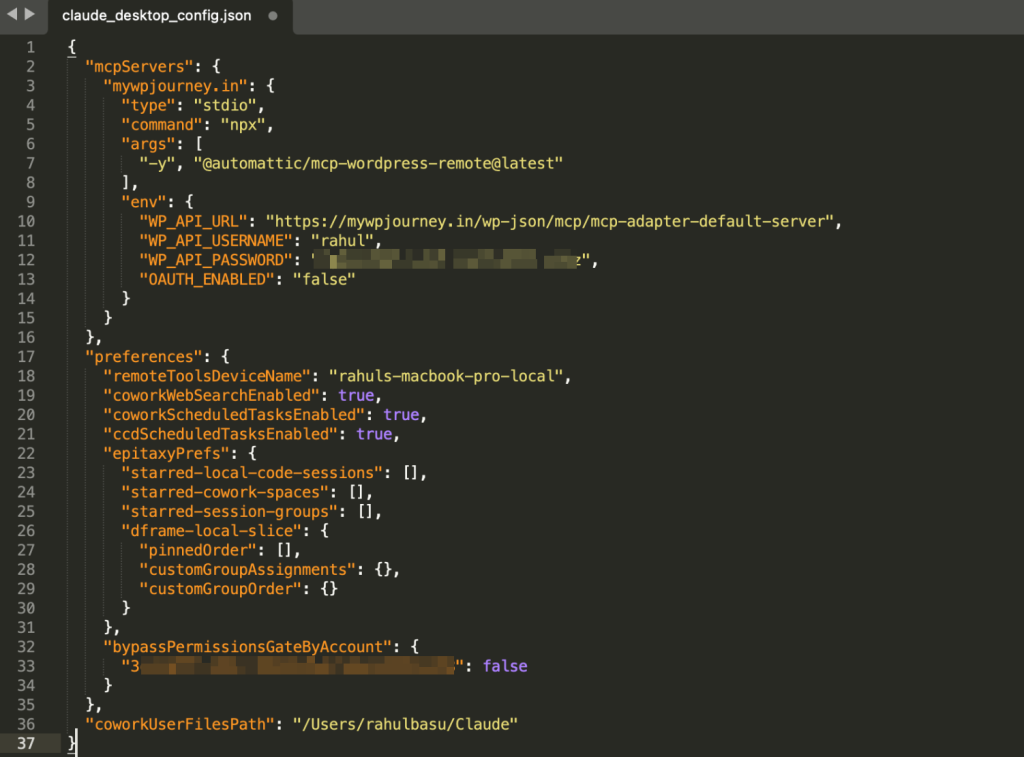
| ⚠️ Importante: No sustituyas el archivo completo. Añade la sección «mcpServers» junto a tu configuración actual. |
Requisitos del sistema:
macOS:
No se requiere ninguna configuración adicional.
Windows
La conexión MCP utiliza el comando npx.
Si el comando npx no está disponible, instala Node.js y reinicia Claude Desktop antes de continuar.
Paso 5: Guardar y reiniciar Claude Desktop
Paso 6: Comprueba la conexión
Abre una nueva conversación con Claude y pregunta:
What MCP tools are available from my WordPress site?
Claude debería mostrar las capacidades MCP disponibles de WordPress y BackWPup asociadas a tu página web.

Siguiente paso
Vuelve a la guía principal y continúa con el paso 3: «Primeros pasos» para descubrir ejemplos de indicaciones y las capacidades de MCP.