

Before continuing, make sure you have already completed Step 2.1: Make your WordPress site accessible to your AI assistant and have the following information ready:
- Website URL
- WordPress username
- Application Password
Prerequisites
Before connecting GitHub Copilot, ensure you have:
- Visual Studio Code (VS Code)
- An active GitHub Copilot subscription
- GitHub Copilot Chat extension installed
- Enabled MCP support in VS Code (Refer to this documentation to enable)
Step 1: Open the MCP Configuration File
- Open Visual Studio Code
- Ensure GitHub Copilot Chat is installed and active.
- Open the Command Palette.
- Search for and open:
mcp.json
Step 2: Add Your WordPress MCP Configuration
Add the following configuration to your mcp.json file:
{
  "servers": {
    "my-wordpress-site": {
      "type": "stdio",
      "command": "npx",
      "args": [
        "-y",
        "@automattic/mcp-wordpress-remote@latest"
      ],
      "env": {
        "WP_API_URL": "https://your-website-domain/wp-json/mcp/mcp-adapter-default-server",
        "WP_API_USERNAME": "your-wordpress-username",
        "WP_API_PASSWORD": "your-application-password",
        "OAUTH_ENABLED": "false"
      }
    }
  }
}
Replace the following placeholders:
| Placeholder | Description |
|---|---|
you-website-domain |
Your website domain |
your-wordpress-username |
Your WordPress username |
your-application-password |
Application Password generated in Step 2.1 |
Step 3: Review the Updated Configuration
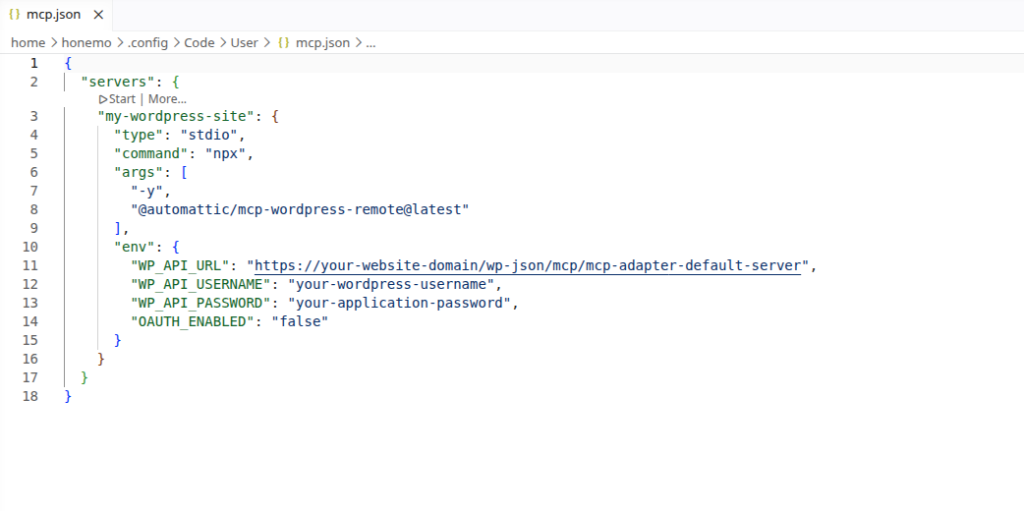
Your configuration should now contain:
- Your WordPress MCP configuration
- Any existing MCP server configurations you already use

| Important: If your mcp.json file already contains other MCP servers, add the WordPress MCP configuration alongside your existing configuration. |
Platform Requirements
macOS
No additional setup is required.
Windows
The MCP connection uses the npx command.
If npx command is unavailable, install Node.js and restart VS Code before continuing.
Step 5: Reload VS Code
- Save the file.
- Open the Command Palette:
- macOS:
Cmd + Shift + P - Windows:
Ctrl + Shift + P
- macOS:
- Search for:
Reload Window - Select Developer: Reload Window.
GitHub Copilot should automatically detect the WordPress MCP server.
Step 6: Verify the Connection
Open GitHub Copilot Chat and ask:
What MCP tools are available from my WordPress site?
Copilot should recognize the plugin’s MCP tools.
Next Step
Return to the main guide and continue with Step 3: Get Started to explore example prompts and MCP abilities.