

Manage your backup archives directly from the settings page, where you can perform actions without needing to access the cloud storage.
Accessing Backup Archives
- Navigate to the Backups History section on the settings page.
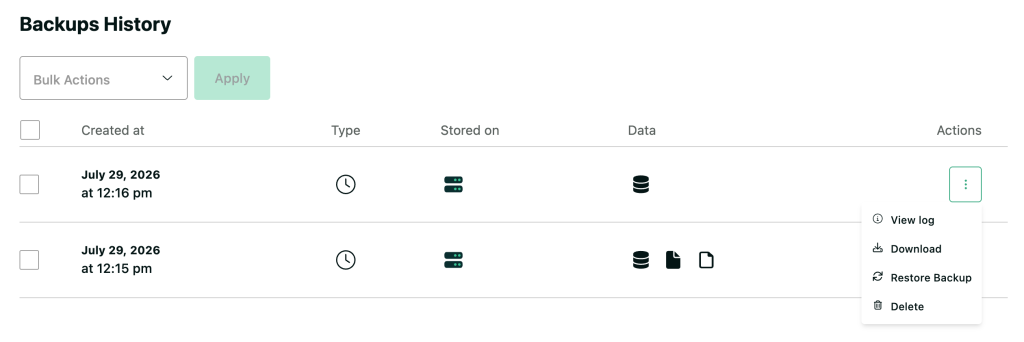
- Here you’ll see a list of all existing backups, along with details such as:
- Created at: The date and time the backup was created.
- Type: Indicates whether the backup was triggered manually, via schedule, or through a link.
- Stored on: Shows where the backup is saved.
- Data: Highlights what data is included in the backup.
Managing Backups
- Each row in the backup history table includes an actions column represented by three dots.
- Click on the three dots to reveal options for each backup:
- View log: Check the details and log activity for the specific backup job.
- Download: Save a copy of the backup to your local device.
- Restore Backup: Revert your site to the state at the time of the backup.
- Delete: Remove the backup file from the storage destination.
This straightforward interface allows you to easily maintain and manage your backups, ensuring your data remains secure and accessible when needed.