

Follow the instructions below to activate your BackWPup Pro license on your WordPress site.
How to Activate Your BackWPup Pro License
- Log in to your BackWPup customer account.
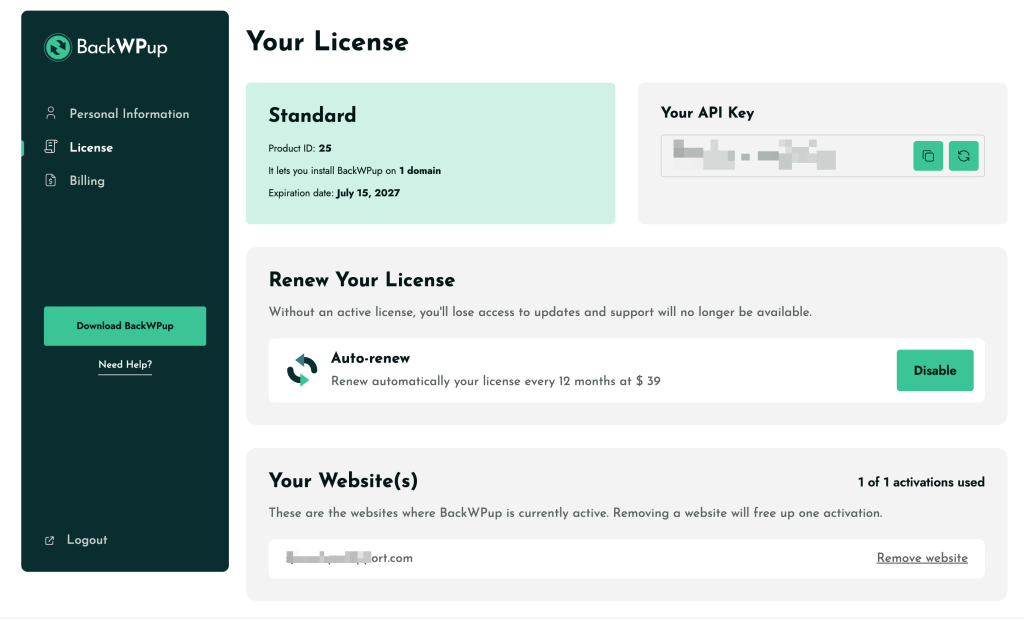
- In the left sidebar menu, click on the License tab.
- Copy your license key from the Your API Key section to your clipboard. Also make a note of your Product ID (e.g.,
25) shown under the license plan box. - Log in to your WordPress admin dashboard and go to BackWPup Pro > Settings and select the License tab.
- Paste your license key into the API Key field and enter your Product ID in the corresponding field.
- Click Save Changes to complete the activation.
Fixing the Error: “Exceeded maximum number of activations”
You can only activate BackWPup Pro on as many WordPress sites as your license plan allows (e.g., 2 site for Starter license). If you see the error message “Exceeded maximum number of activations”, it means all your available license slots are currently in use.
To activate the license on a new website or domain, you must first remove an old activation from your account:
How to Remove or Reset a Domain Activation
- Log in to your BackWPup customer account and go to the License tab.
- Scroll down to the Your Website(s) section at the bottom. This section lists all domains where your BackWPup Pro license is currently active.
- Locate the website URL you want to disconnect and click the Remove website link next to it.
- Removing the site will immediately free up one activation slot.
- Go back to your new WordPress dashboard and try activating the license again.
Troubleshooting Tip: If you encounter issues deactivating or activating a license directly from your WordPress backend, always check your account dashboard at backwpup.com or backwpup.de > License to verify active domains. Use the Remove website option in your account portal to manually reset any domain lock before re-activating in WordPress.