

Before continuing, make sure you have already completed Step 2.1: Make your WordPress site accessible to your AI assistant and have the following information ready:
- Website URL
- WordPress username
- Application Password
Prerequisites
Before connecting OpenAI Codex Desktop, ensure you have:
- WordPress 7 or later installed
- OpenAI Codex Desktop installed
- An OpenAI account
Step 1: Add a New MCP Server
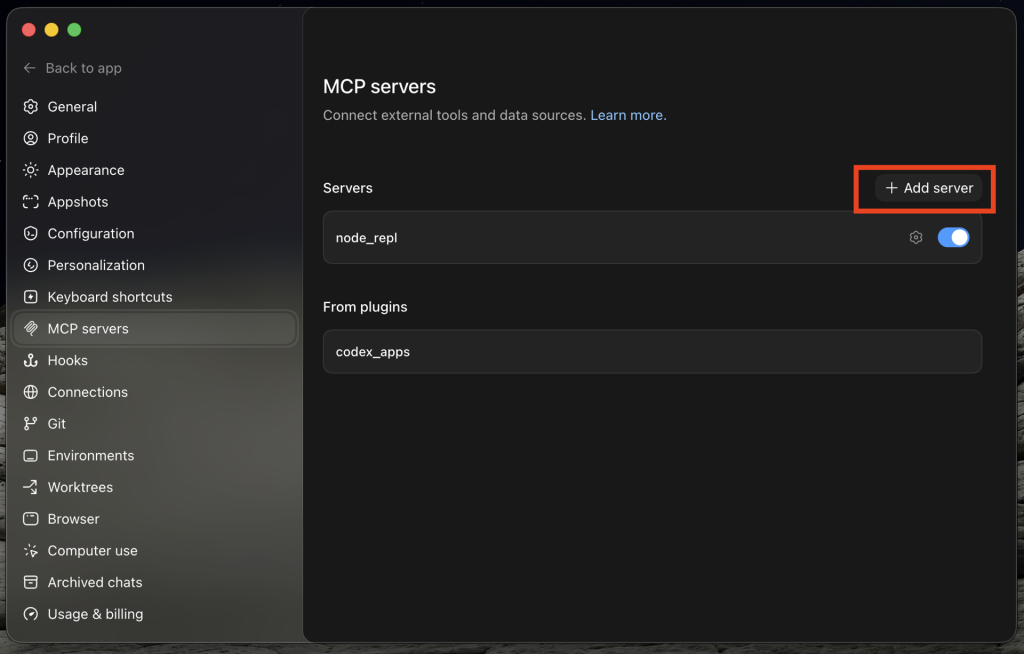
- Open OpenAI Codex Desktop
- Open Settings → MCP Servers.
- Click Add server.
- Select STDIO.
Step 2: Configure Your WordPress MCP Server
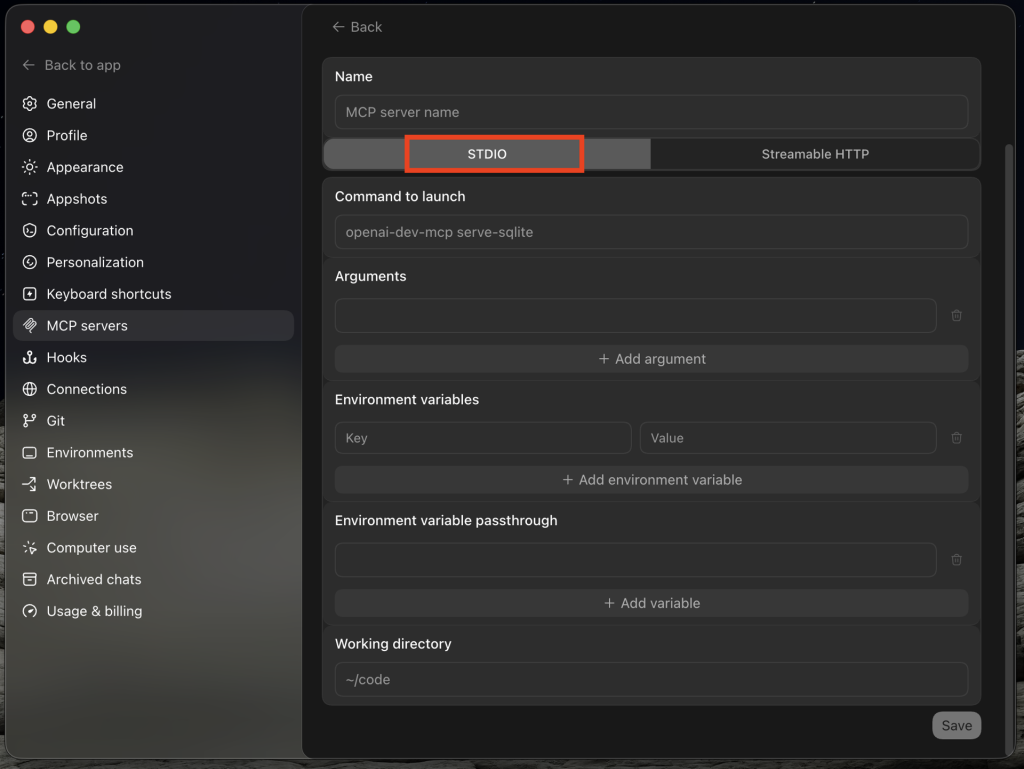
Codex supports multiple MCP connection types. For WordPress MCP integrations, select: STDIO
Enter the following values:
| Field | Value |
|---|---|
| Name | your-website-domain |
| Command to launch | npx |
Arguments
Add the following arguments:
-y
@automattic/mcp-wordpress-remote@latest
Environment Variables
Add the following environment variables:
| Key | Value |
|---|---|
| WP_API_URL | https://your-website-domain/wp-json/mcp/mcp-adapter-default-server |
| WP_API_USERNAME | your-wordpress-username |
| WP_API_PASSWORD | your-application-password |
| OAUTH_ENABLED | false |

Replace the following placeholders:
| Placeholder | Description |
|---|---|
your-website-domain |
Your website domain |
your-wordpress-username |
Your WordPress username |
your-application-password |
The Application Password generated in Step 2.1 |
Step 3: Review and Save Your Configuration
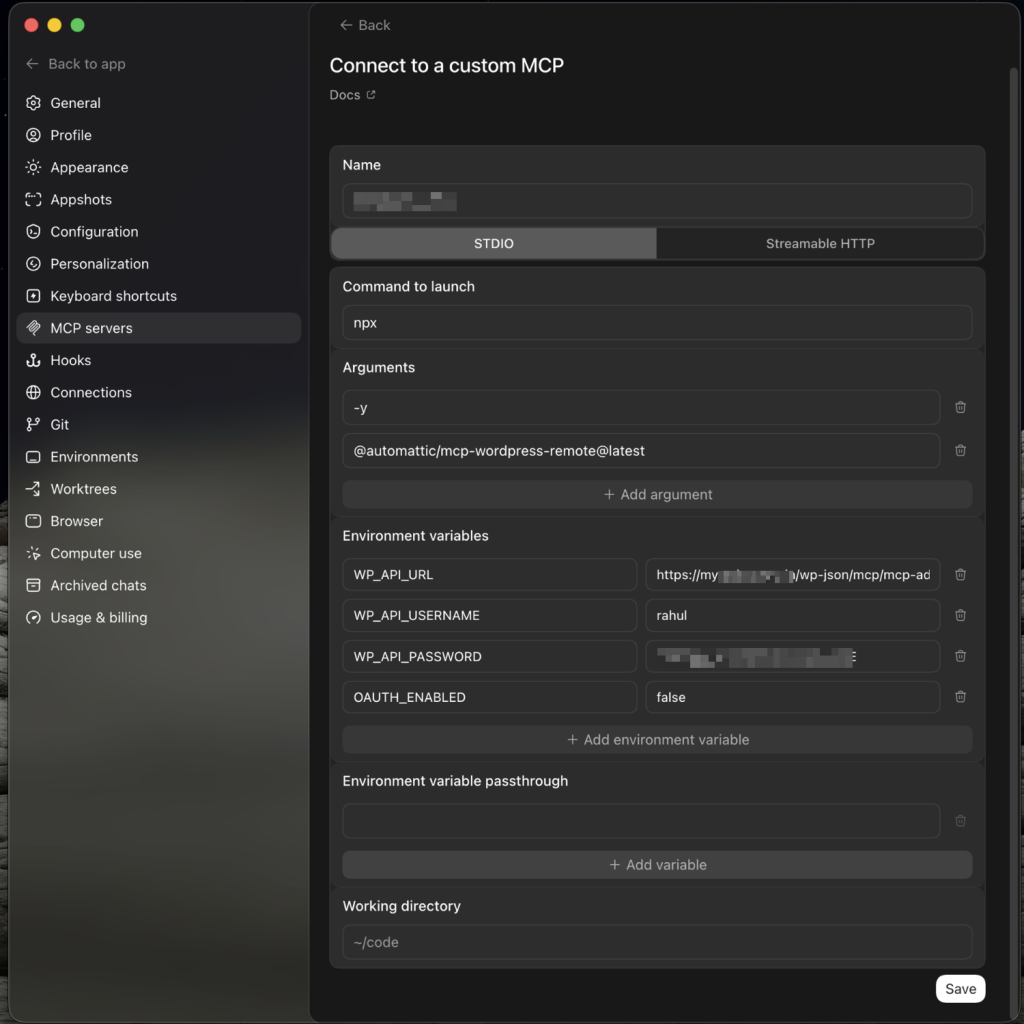
Review your configuration and verify all values are correct. Your completed configuration should look similar to the example shown above.
Click Save.
Step 4: Restart Codex
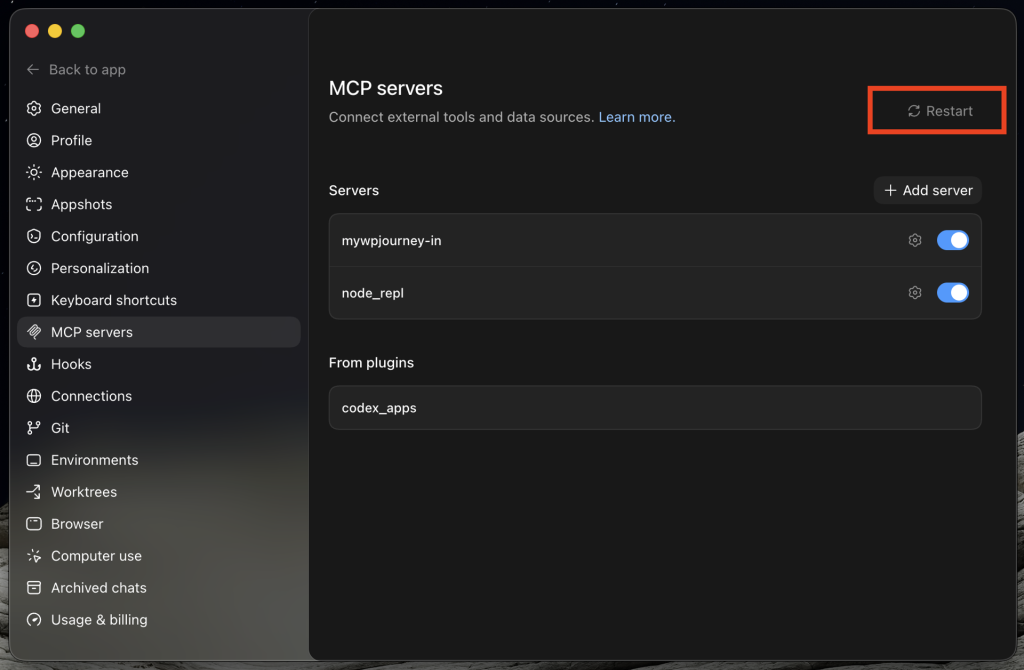
- Return to the MCP Servers page.
- Verify your server appears in the list.
- Click Restart.
Codex reloads the MCP servers automatically after clicking Restart.
Step 5: Verify the connection
- Click Back to app to leave the Settings screen.
- Create a New Chat.
- Enter the following prompt:
What MCP tools are available from my WordPress site? - Submit the prompt.
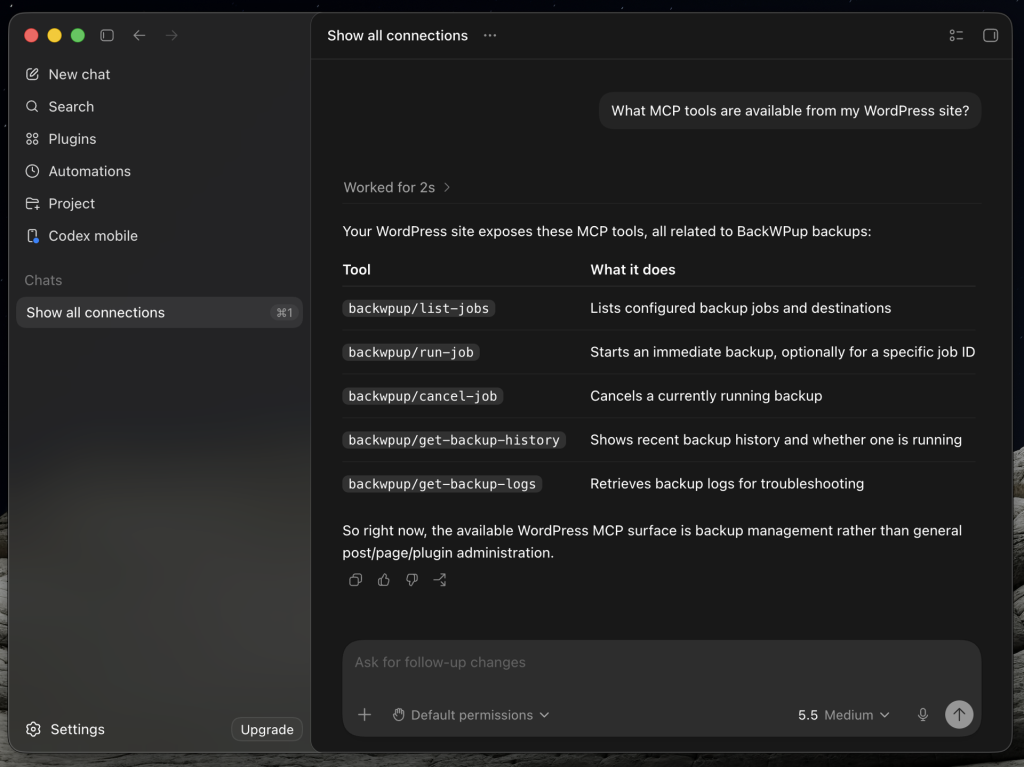
Codex should display the MCP tools exposed by your WordPress plugin.
If the connection is successful, Codex is ready to interact with your WordPress site using natural language.
Next Step
Return to the main guide and continue with Step 3: Get Started to explore example prompts and MCP abilities.