

Antes de continuar, asegúrate de que ya has completado el paso 2.1: «Hacer que tu sitio WordPress sea accesible para tu asistente de IA » y de que tienes a mano la siguiente información:
- URL del sitio web
- WordPress nombre de usuario
- Contraseña de la aplicación
Requisitos previos
Antes de conectar OpenAI Codex Desktop, asegúrate de que dispones de:
- WordPress Versión 7 o posterior instalada
- OpenAI Codex Desktop instalado
- Una cuenta de OpenAI
Paso 1: Añadir un nuevo servidor MCP
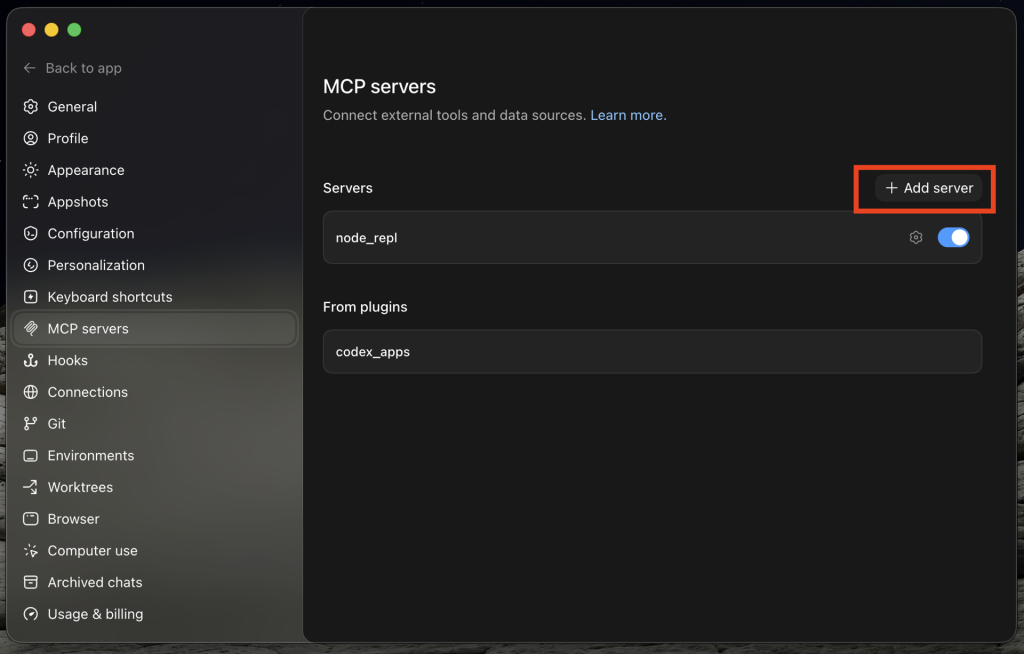
- Abrir OpenAI Codex Desktop
- Abre «Configuración» → «Servidores MCP».
- Haz clic en «Añadir servidor».
- Selecciona STDIO.
Paso 2: Configurar el servidor MCP de « WordPress »
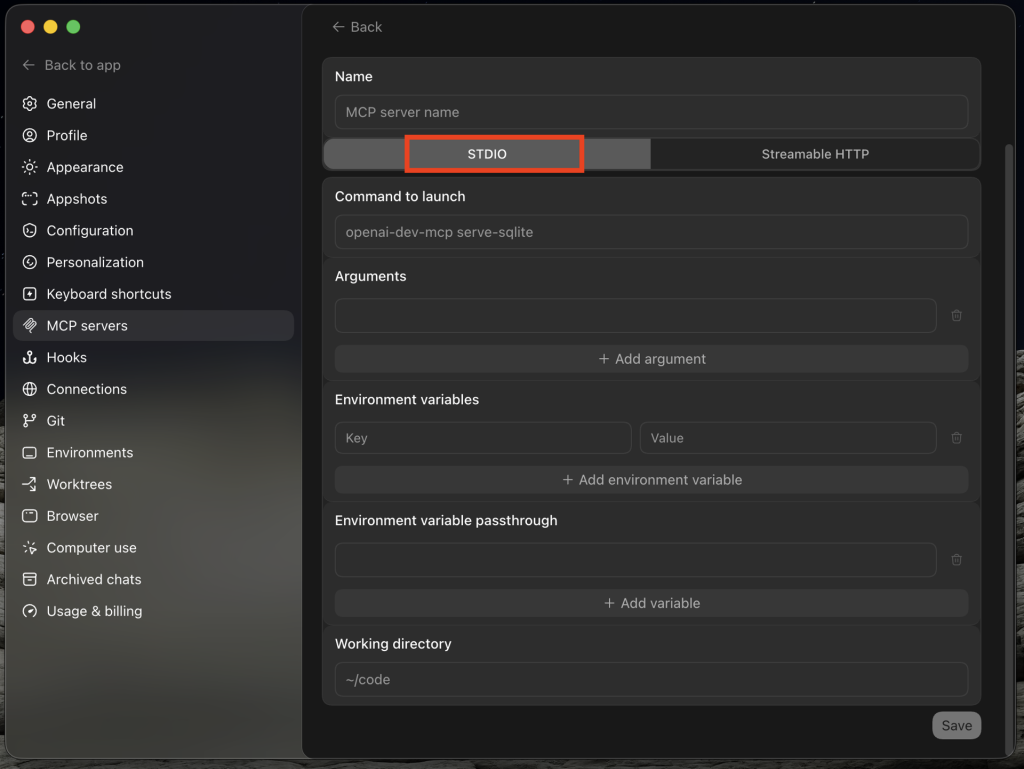
Codex admite varios tipos de conexión MCP. Para las integraciones MCP de WordPress , selecciona: STDIO
Introduce los siguientes valores:
| Campo | Valor |
|---|---|
| Nombre | your-website-domain |
| Comando para iniciar | npx |
Argumentos de `
`
Añade los siguientes argumentos:
-y
@automattic/mcp-wordpress-remote@latest
Variables de entorno
Añade las siguientes variables de entorno:
| Clave | Valor |
|---|---|
| WP_API_URL | https://your-website-domain/wp-json/mcp/mcp-adapter-default-server |
| WP_API_USERNAME | your-wordpress-username |
| WP_API_PASSWORD | your-application-password |
| OAUTH_ENABLED | false |

Sustituye los siguientes marcadores de posición:
| Marca de posición | Descripción |
|---|---|
your-website-domain |
El dominio de tu página web |
your-wordpress-username |
Tu nombre de usuario de WordPress |
your-application-password |
La contraseña de la aplicación generada en el paso 2.1 |
Paso 3: Revisa y guarda tu configuración
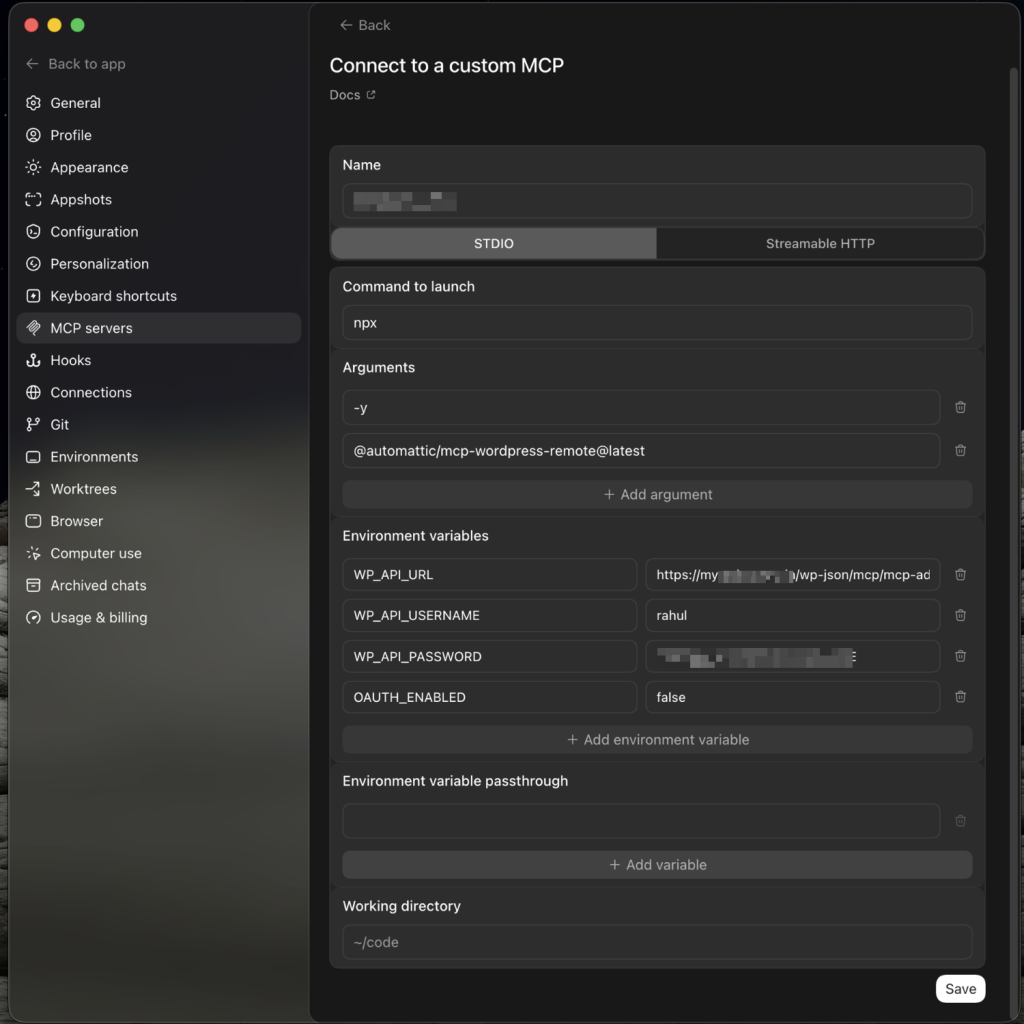
Revisa tu configuración y comprueba que todos los valores sean correctos. La configuración final debería ser similar al ejemplo que se muestra más arriba.
Haz clic Guardar.
Paso 4: Reinicia Codex
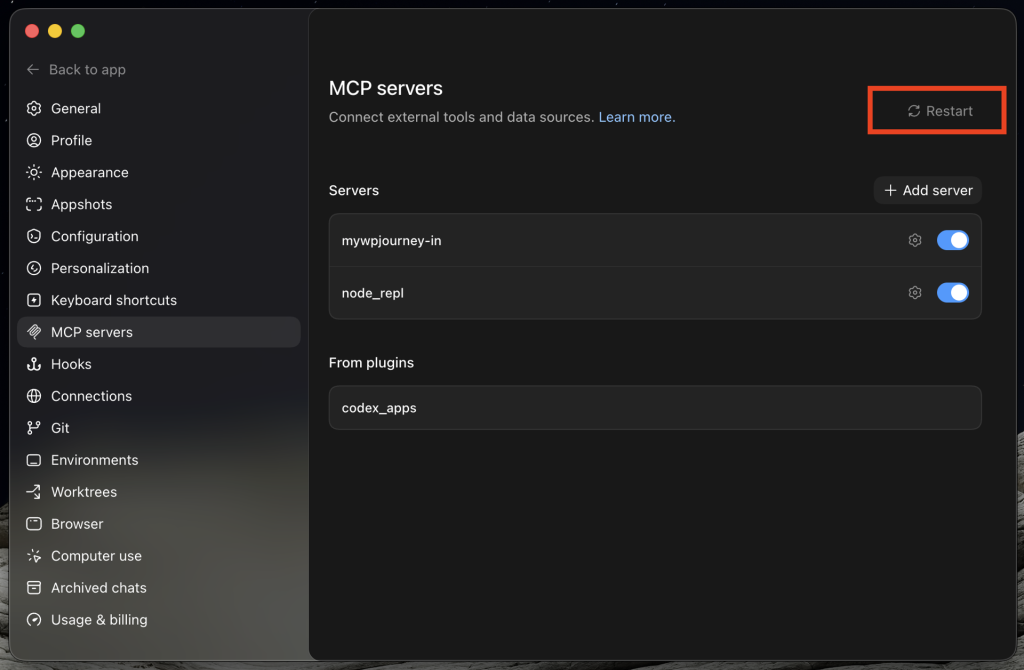
- Volver a la página de servidores MCP.
- Comprueba que tu servidor aparezca en la lista.
- Haz clic en «Reiniciar».
Codex reinicia los servidores MCP automáticamente al hacer clic en «Reiniciar».
Paso 5: Comprueba la conexión
- Pulsa en «Volver a la aplicación » para salir de la pantalla de Ajustes.
- Crear un nuevo chat.
- Escribe el siguiente comando:
What MCP tools are available from my WordPress site? - Envía la consigna.
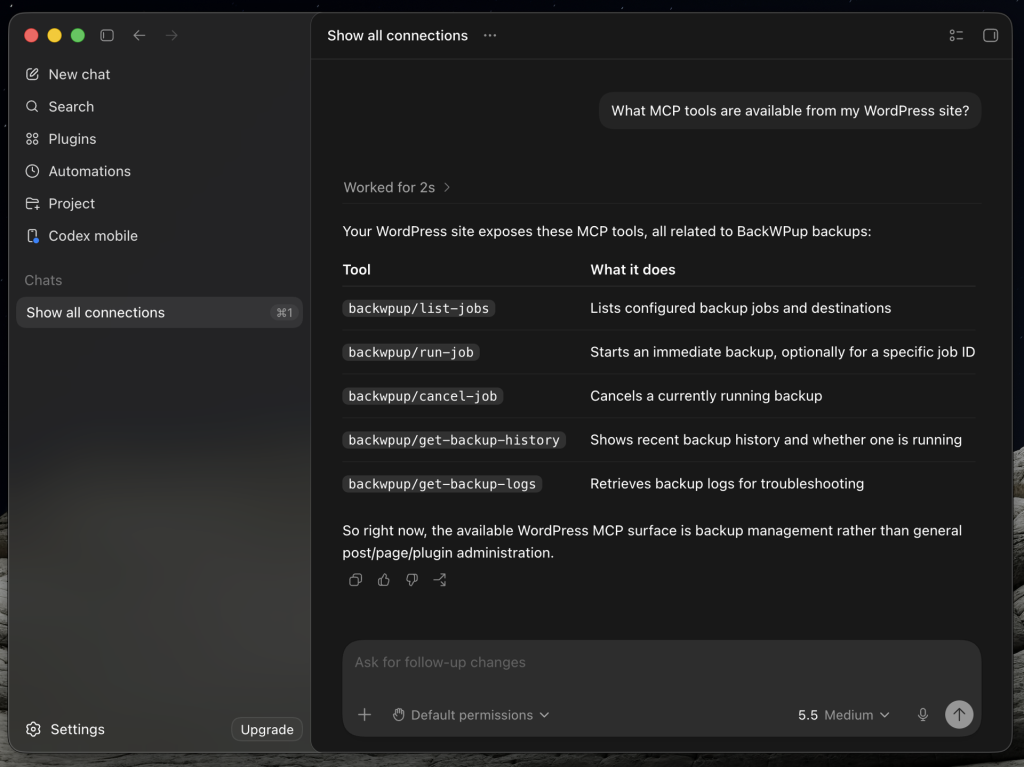
Codex debería mostrar las herramientas de MCP que pone a disposición el plugin « WordPress ».
Si la conexión se establece correctamente, Codex estará listo para interactuar con tu sitio web WordPress utilizando lenguaje natural.
Siguiente paso
Vuelve a la guía principal y continúa con el paso 3: «Primeros pasos» para descubrir ejemplos de indicaciones y las capacidades de MCP.