

Table des matières
To save a WordPress backup to Dropbox using BackWPup, you must have an existing Dropbox account. If you do not have an account, you can create one here.
Table des matières
Connecting to Dropbox
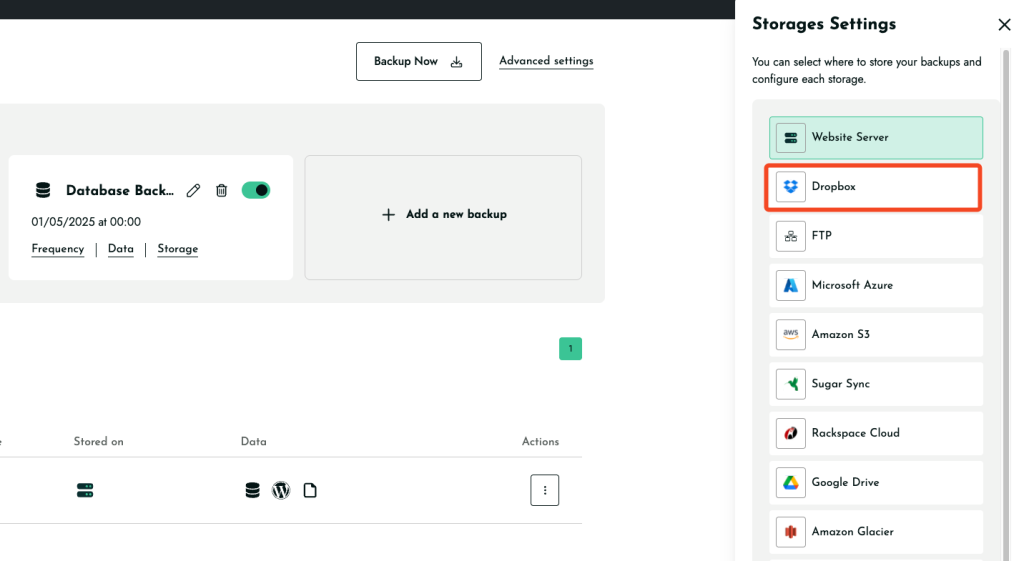
- Select Dropbox Storage:
- In the BackWPup settings, choose Dropbox as your storage option. This can be done during the backup setup or by navigating to the dashboard.
- Authentification :
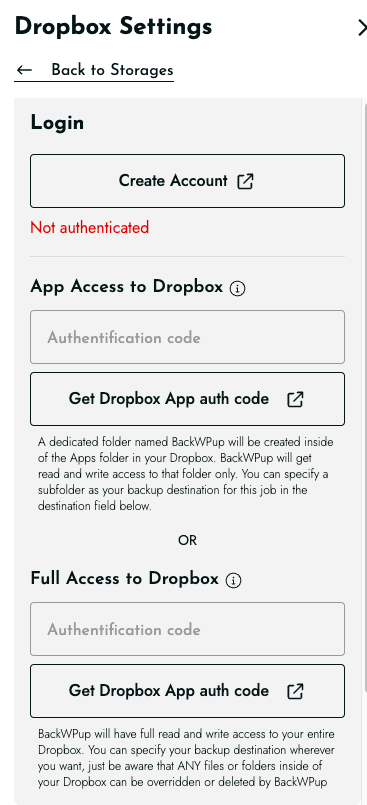
- Si vous n'êtes pas encore authentifié, le message « Non authentifié ! » s'affichera en rouge en haut de la page des paramètres.
- Pour vous authentifier, deux options s'offrent à vous :
- App Access: Click ‘Get Dropbox App auth code’ for limited access to a specific folder within your Dropbox.
- Full Access: Click ‘Get full Dropbox auth code’ for access to your entire Dropbox.
- Nous vous recommandons d'utiliser l'accès via l'application pour plus de sécurité.
- Procédure d'autorisation :
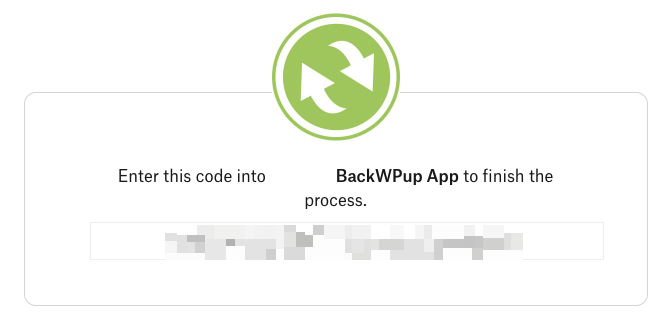
- After clicking the auth code button, you will be redirected to Dropbox’s website. Click ‘Allow’ to permit BackWPup to access your Dropbox.
- Dropbox will then provide you with a code. Copy this code and paste it into the corresponding field back in the BackWPup settings page.
- Terminer la connexion :
- Once the code is entered, click ‘Save Changes’ at the bottom of the page. BackWPup will confirm that it is successfully connected to Dropbox.
Configuration de l'emplacement de stockage des sauvegardes
- Nom du dossier de stockage :
- Specify the folder name where your backups will be stored. If using App authentication, it will be located under the ‘Apps/BackWPup’ directory in your Dropbox.
- Gestion des fichiers :
- In the ‘File Deletion’ setting, determine the maximum number of backups to keep in Dropbox. Setting this limit helps manage storage space by deleting the oldest backup when the maximum is reached.
Effectuer votre première sauvegarde
- Une fois l'installation terminée, lancez une sauvegarde pour vous assurer que tout est correctement configuré. Cette étape permet de vérifier que le processus de sauvegarde fonctionne comme prévu.