

BackWPup Pro offre la possibilità di crittografare i backup prima di caricarli sulla destinazione di backup: una funzionalità eccellente per la sicurezza dei tuoi dati e di quelli dei tuoi clienti e utenti.
E – a causa delle normativa GDPR – un requisito imprescindibile per tutti coloro che conservano informazioni personali nei propri backup e hanno sede nell’UE o dispongono di dati personali di utenti residenti nell’UE nella propria installazione di WordPress .
Che cos’è esattamente un backup crittografato e perché dovresti utilizzare questa funzione?
Ogni volta che si crea un backup con " BackWPup " o qualsiasi altro plugin di backup, il risultato viene solitamente caricato su una destinazione di backup. Questa potrebbe essere il proprio server FTP, Google Drive o qualsiasi altro servizio cloud.
Nel caso in cui qualcuno riesca ad accedere alla destinazione del backup, potrà leggere i dati contenuti nel backup senza alcuna difficoltà. I backup non crittografati rappresentano una falla nella sicurezza e comportano il rischio che i dati dell’azienda, dei clienti e degli utenti finiscano nelle mani sbagliate.
Crittografare un backup significa rendere i dati illeggibili tramite un processo di crittografia. Prima di procedere alla crittografia, sarà necessario generare una chiave (o una coppia di chiavi). Tale chiave dovrà poi essere conservata in un luogo sicuro. La chiave è necessaria nell’algoritmo di crittografia per rendere i dati illeggibili, nonché per decrittografarli. Solo chi è in possesso della chiave è in grado di rendere nuovamente leggibile il backup.
Attenzione: se si smarrisce la chiave, non sarà più possibile accedere ai dati.
Procedura di crittografia
BackWPup offre due metodi di crittografia: uno simmetrico e uno asimmetrico.
La procedura simmetrica funziona con una singola chiave e si basa sulla nota AES 256 (AES = Advanced Encryption Standard). Per la crittografia e la decrittografia viene utilizzata la stessa chiave.
La procedura asimmetrica utilizza l’ algoritmo RSA e l'algoritmo AES. In questo caso si genera una chiave AES-256 casuale, che viene poi utilizzata per la crittografia. Inoltre, la chiave AES stessa viene successivamente codificata utilizzando l'algoritmo RSA (procedura ibrida).
La procedura RSA richiede una coppia di chiavi composta da una chiave pubblica e una chiave privata. Queste possono essere generate tramite BackWPup Pro . La chiave privata deve essere conservata in un luogo sicuro e deve essere nota solo a te.
Se non sai quale delle due procedure scegliere, ecco i rispettivi vantaggi e svantaggi:
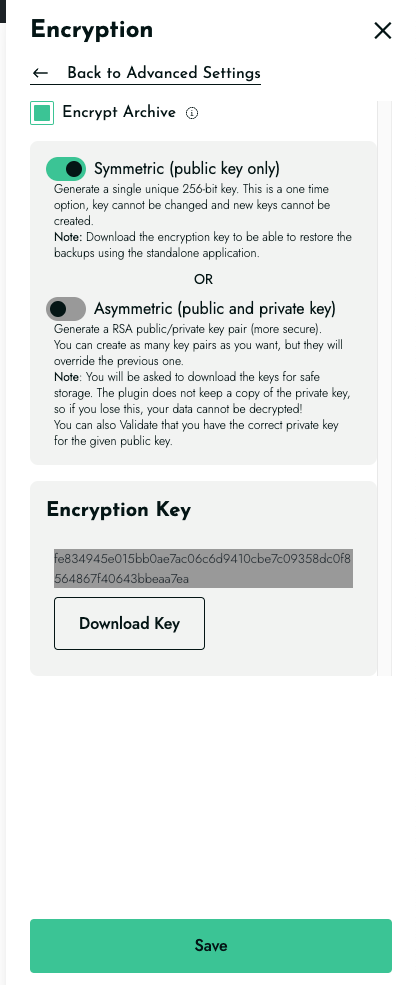
- La procedura simmetrica è più semplice da utilizzare perché, una volta generata la chiave, è sufficiente memorizzarla nel database BackWPup Pro . Non è necessario preoccuparsi di custodire la chiave in modo sicuro: è possibile copiare e incollare il valore della chiave disponibile nel BackWPup Pro → Impostazioni nella sezione scheda Crittografia . Tuttavia , consigliamo vivamente di creare e conservare una copia della chiave. Il backup è al sicuro fintanto che il database dell’installazione di WordPress non viene compromesso: se il database viene danneggiato, si potrebbe perdere la chiave e non sarebbe più possibile decriptare il backup, a meno che non si disponga di una copia della chiave. Pertanto, una volta generata la chiave nel sistema, è necessario scaricarla utilizzando l’apposito pulsante, altrimenti la crittografia non potrà essere attivata correttamente.
- La procedura asimmetrica è l'opzione più sicura perché utilizza due chiavi. Tu sei l'unico a possedere una di queste due chiavi. Svantaggio: devi garantire la custodia della chiave privata RSA. Se perdi la chiave, non potrai più accedere ai tuoi dati. Anche in questo caso è necessario scaricare la chiave privata dopo la generazione.
Generazione delle chiavi di crittografia e crittografia del backup
Per poter creare un backup crittografato con BackWPup , dovrai prima generare la chiavePro:
- Vai su BackWPup Pro→ Impostazioni → Impostazioni avanzate, quindi seleziona la scheda Crittografia .
- Selezionare il metodo di crittografia che si desidera utilizzare: simmetrico o asimmetrico.
- Clicca Genera chiave.
- Se hai selezionato il metodo simmetrico, verrà generata una singola chiave che verrà memorizzata all'indirizzo BackWPup Pro . Per sicurezza, ti consigliamo di salvarla anche in un'altra posizione.
- Se hai selezionato il metodo asimmetrico, BackWPup genera una coppia di chiavi RSA. Ti verrà proposto di scaricare entrambe le chiavi. È necessario scaricare almeno la chiave privata. Successivamente, clicca su “Usa queste chiavi”.
- A questo punto, potrai attivare l'opzione "Crittografa archivio" nella parte superiore.
- Salva le modifiche per eseguire il backup con crittografia
Ripristino di un backup crittografato
Il backup serve proprio a poter ripristinare il tuo sito in caso di emergenza. La nostra funzione di ripristino disponibile su BackWPup Pro consente di ripristinare sia i backup crittografati che quelli non crittografati. Basta seguire le istruzioni di ripristino riportate su BackWPup .
Decrittografia di un backup
Se desideri decriptare un backup crittografato, scaricalo dal backend della tua installazione di WordPress come segue:
- Vai su BackWPup Pro → Impostazioni.
- Passa il mouse sul backup desiderato.
- Fai clic su " Scarica".
- Il backup è stato decrittografato. Se hai scelto il metodo di crittografia asimmetrica, devi inserire la tua chiave privata RSA nella finestra che si apre;in caso contrario, devi inserire la chiave simmetrica.
Nota: per decriptare il backup è necessario BackWPup Pro . Non sarà possibile decriptare il backup con nessun altro strumento.