

Descubre las ventajas de una copia de seguridad de «WordPress » en Google Drive.
Hacer una copia de seguridad de tu sitio web WordPress en Google Drive con BackWPup garantiza que tus datos se guarden de forma segura fuera de tus instalaciones. A continuación te ofrecemos una guía detallada para ayudarte a configurar este proceso de forma eficaz.
Configuración de la autenticación « Google Drive » para BackWPup:
- Inicia sesión en tu cuenta de Google y accede a la Consola de Google Cloud.
- Crea un nuevo proyecto y selecciónalo una vez que se haya creado.
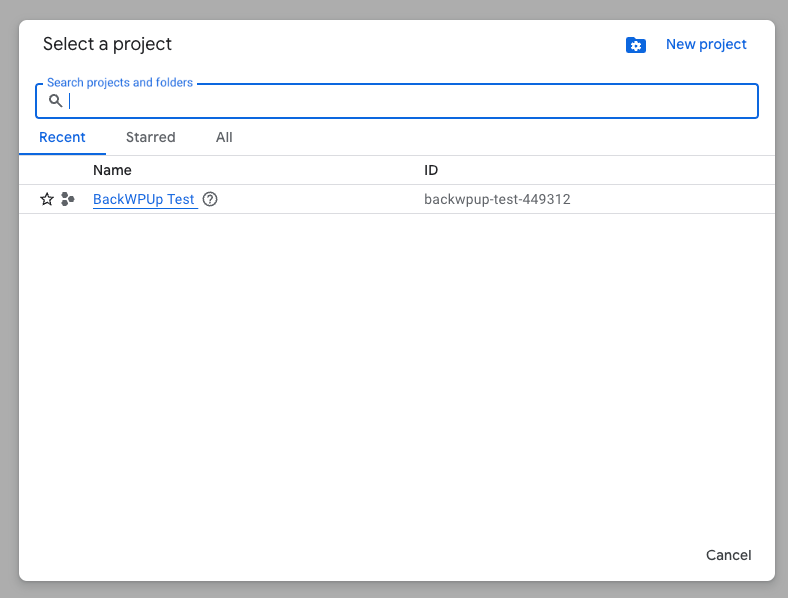
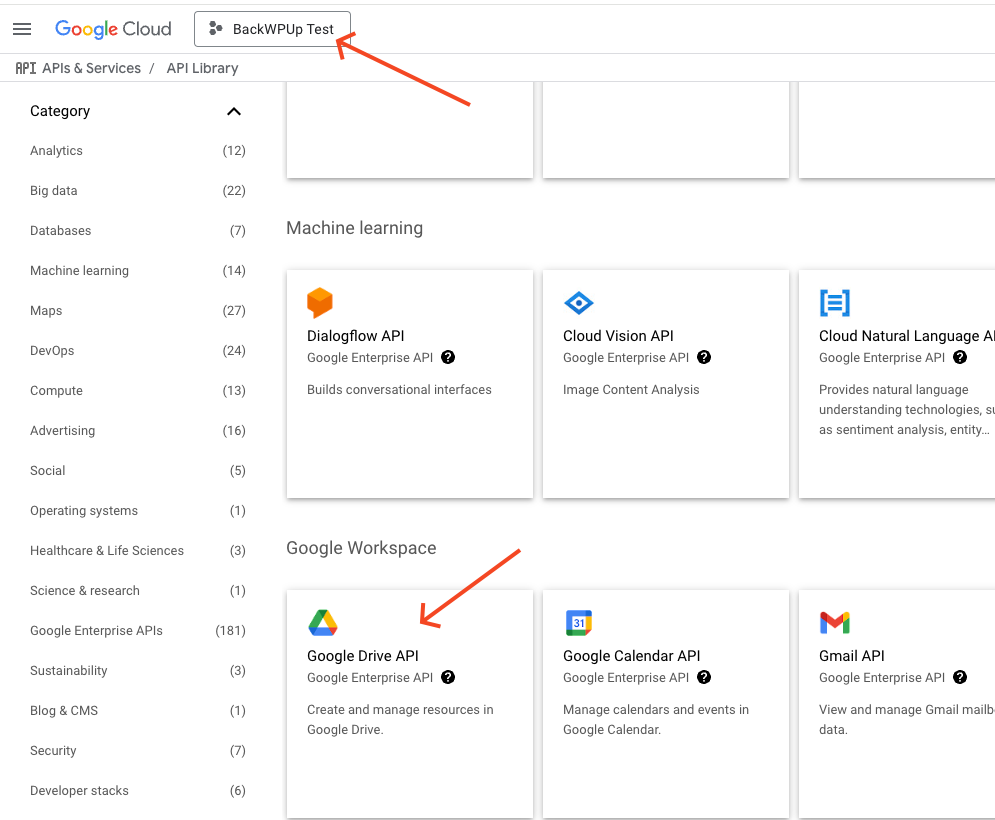
- Busca el archivo « Google Drive » (API ) en la biblioteca y actívalo para tu proyecto.
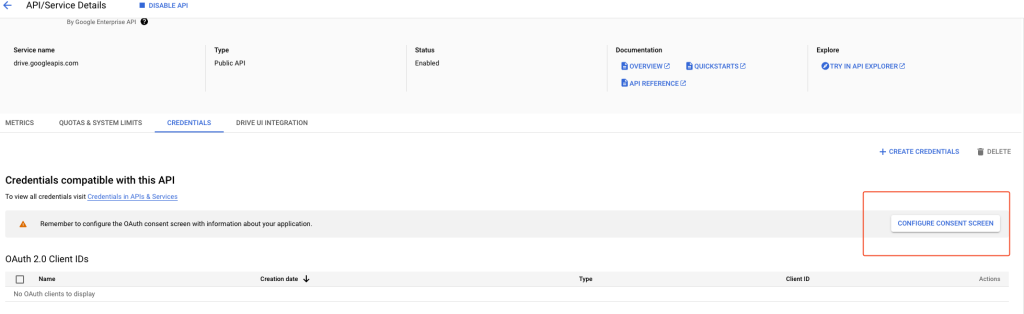
- Haz clic en «Credenciales» en la barra lateral. Si se solicita la configuración de la pantalla de consentimiento porque aún no se ha configurado, haz clic en «CONFIGURAR PANTALLA DE CONSENTIMIENTO».
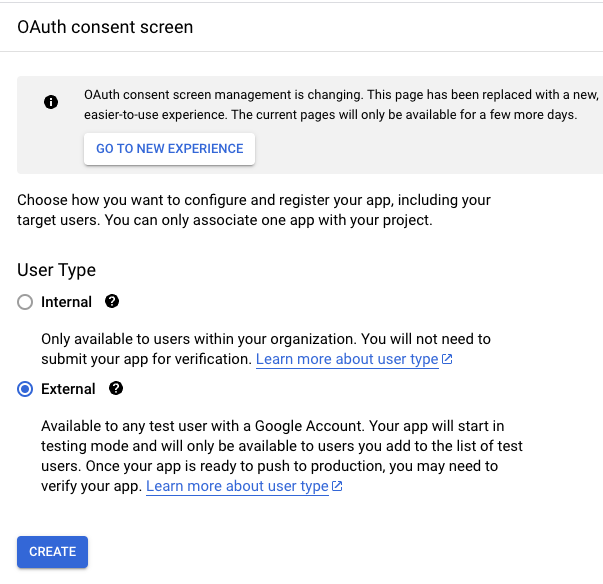
- En la siguiente pantalla, selecciona la opción «Externo».
- Por último, en la siguiente pantalla, introduce el nombre de la aplicación, tu cuenta de Google para la asistencia por correo electrónico y tu dirección de correo electrónico en la parte inferior, en el apartado «Contacto del desarrollador».
- Finaliza el proceso pulsando el botón «Guardar» en las siguientes pantallas hasta que vuelvas al panel de control.
- Una vez realizadas estas configuraciones, la autenticación se establece en modo de prueba de forma predeterminada. Para pasarla a producción cuando necesites utilizar la aplicación en modo de producción, selecciona el enlace a la pantalla de aprobación de OAuth en el menú de la izquierda y haz clic en «PUBLICAR APLICACIÓN».
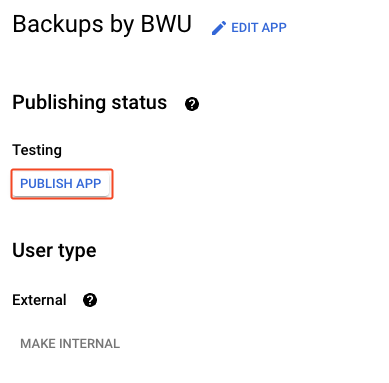
- Trabajar en modo de prueba restringe el acceso a Google Drive, lo que limita aún más el proceso de autenticación.
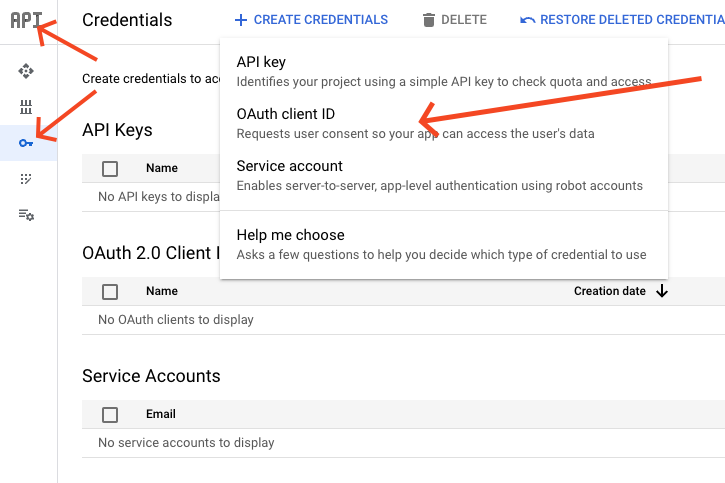
- Una vez configurada la pantalla de consentimiento, haz clic en el enlace «Credenciales» del panel de control principal y, a continuación, haz clic en el enlace «+ CREAR DATOS DE INICIO DE SESIÓN» y selecciona «ID de cliente de OAuth». Se te redirigirá a una nueva página.
- En «Tipo de aplicación», selecciona «Aplicación web» e introduce un nombre para la aplicación web. Deja vacío el campo «Fuentes de JavaScript autorizadas».
- En el panel de administración de WordPress , ve a las opciones de almacenamiento, selecciona « Google Drive » y accede a la sección «Claves de API de Google».
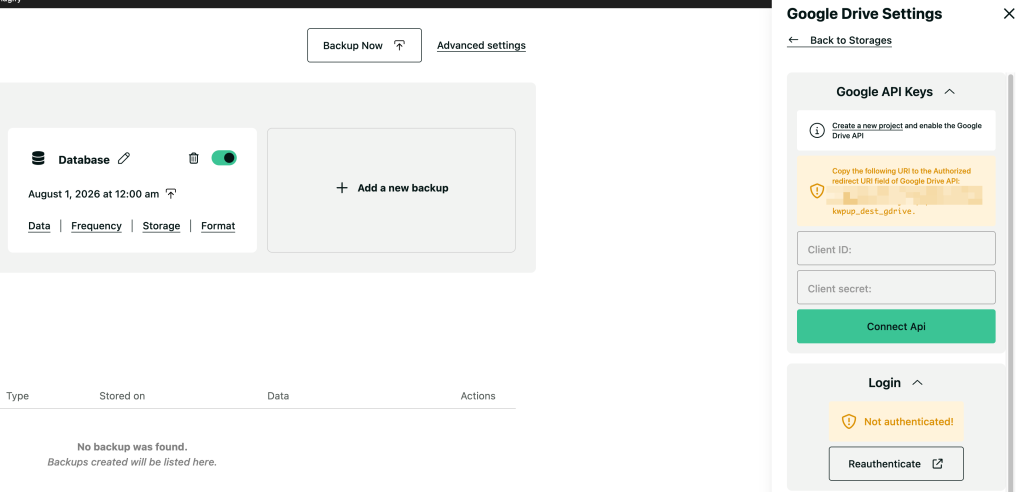
- Copia la URL que aparece en «URI de redirección» y pégala en el campo «URI de redirección autorizadas» del formulario Google Drive .
- A continuación, haz clic en «Crear».
- A continuación, se creará el cliente y se te mostrarán el ID de cliente y el secreto de cliente.
- Copia el ID de cliente y el secreto de Google Drive y pégalos en el backend de BackWPup , en los campos «ID de cliente» y «Secreto de cliente». A continuación, guarda la configuración de BackWPup .
- Ahora ve a la pestaña de inicio de sesión.
- Se te redirigirá a Google y deberás permitir que BackWPup acceda a Google Drive. Haz clic en «Permitir».
- A continuación, se te redirigirá al área de administración de WordPress , donde deberías ver que la autenticación se ha realizado correctamente.
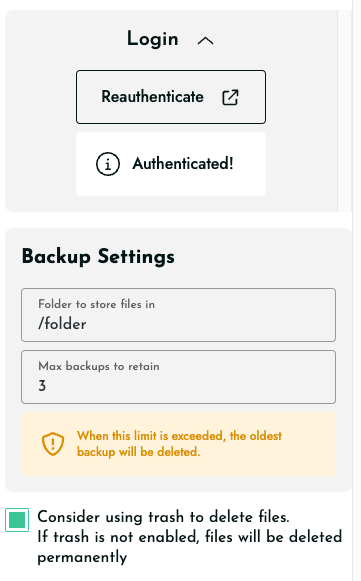
- En la página de configuración hay algunas opciones más: «Carpeta en Google Drive » (nombre de la carpeta donde se almacenarán todas las copias de seguridad), «Eliminación de archivos» (el número máximo de copias de seguridad que se almacenarán; las más antiguas se eliminarán) y una casilla de selección situada debajo de «Eliminación de archivos» que envía las copias de seguridad antiguas a la papelera de Google Drive en lugar de eliminarlas inmediatamente.
- Comprueba que la autenticación Google Drive sea correcta iniciando una copia de seguridad backup job con este destino. Si se ha realizado correctamente, ahora deberías ver tu copia de seguridad en Google Drive .