

Indice
This article shows how to install the stand-alone restore app. We created this BackWPup Restore stand-alone app out of several reasons. For example in case your whole WordPress installation isn’t available anymore and you want to restore.
To install the BackWPup restore stand-alone app, you will need
- Accesso FTP al tuo server web
Indice
Installazione
- Download BackWPup Pro in your account and extract the zip-file. Now you have a folder backwpup-pro. This folder contains another zip-file backwpup-restore-app-xxx.zip
- Extract the zip-file backwpup-restore-app-xxx.zip.
- Nella cartella troverai due file,
restore.phareStartUp.php. Upload these two files to your web server. You can use a FTP Client of your choice to upload the files. The files should be placed in the same folder as your WordPress installation. I.e.restore.phareStartUp.phpdovrebbe trovarsi nella stessa cartella, ad esempiowp-config.phpewp-content/. - Now we can start the restore app. Let’s assume your WordPress site is available at http://example.com/. Go to http://example.com/StartUp.php. The startup script will extract all necessary files and forward you to the restore app. The app looks like the following.
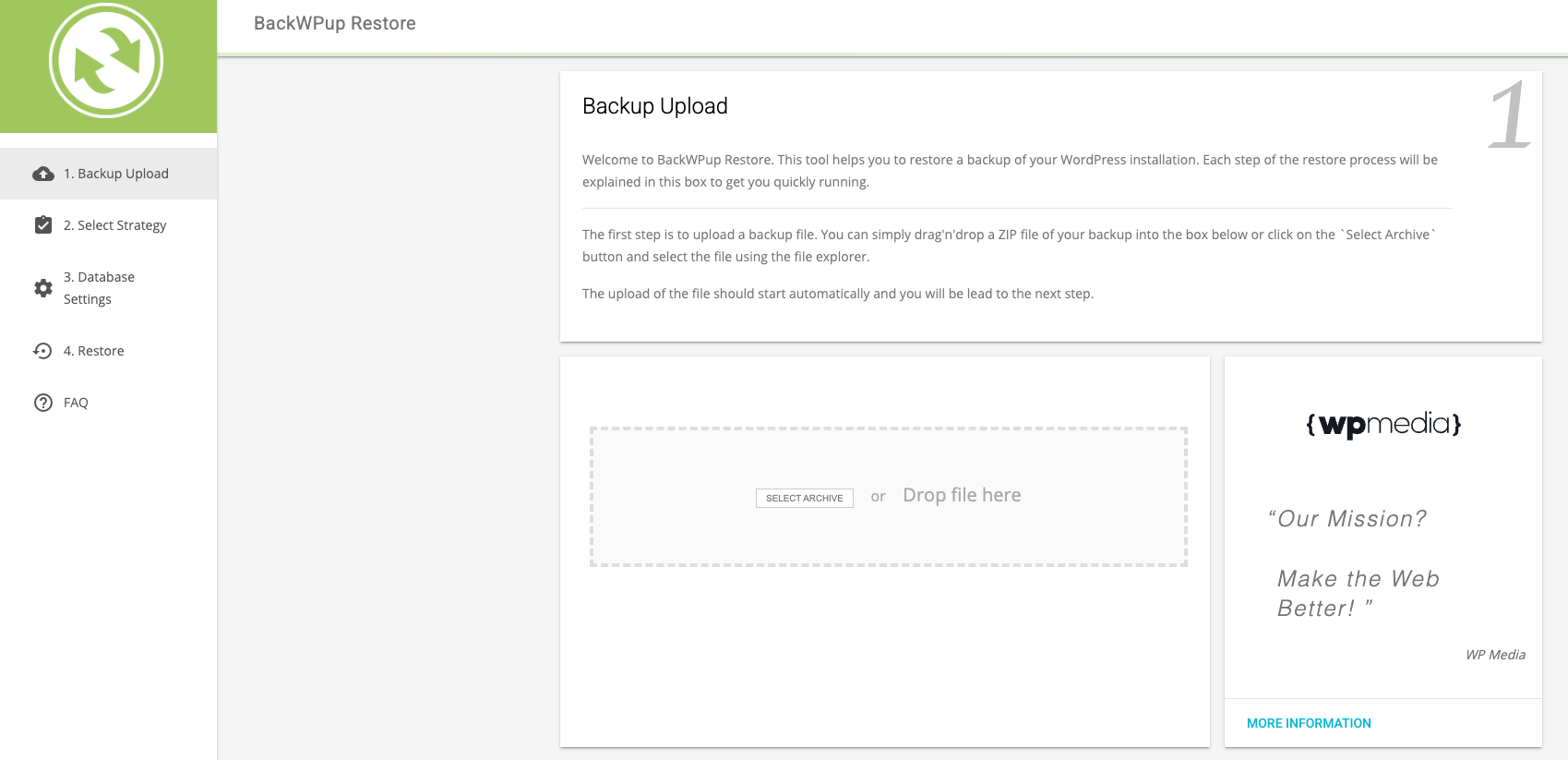
- You are now ready to use the restore app. Simply upload your backup and follow the described steps. Check out the article how do I use the BackWPup restore feature to get more information.
Risoluzione dei problemi
Lo script di avvio viene eseguito, ma vedo solo una pagina bianca
Questo può accadere in diverse situazioni:
È possibile che lo script di avvio non riesca a decomprimere il file restore.phar correttamente. Dai un'occhiata alla directory in cui StartUp.php e restore.phar sono localizzati. C'è anche un nuovo restore/ cartella? Se no, significa che lo script non è riuscito a decomprimere correttamente l'app.
Assicurati che entrambi i file abbiano i seguenti permessi: 644.
Se lo script di avvio è riuscito a creare un restore/ cartella, dai un'occhiata e verifica se c'è un file in restore/src/App/index.php.