

Overview
This documentation explains how to leverage MCP capabilities with BackWPup to automate backup management, monitor website health, and perform actions directly through your preferred AI assistant.
This page is designed for two types of users:
- Advanced users who already understand MCP concepts and want to quickly connect BackWPup and start using practical workflows.
- New users who are exploring MCP for the first time and want a simple introduction before getting started.
In both case, you’ll get practical examples to get started, and enjoy managing your plugin through your favorite AI assistant.
Step 1: Understanding MCP Abilities with BackWPup
What is MCP?
MCP (Model Context Protocol) allows AI assistants to securely interact with applications like WordPress plugins.
Instead of manually navigating through your WordPress dashboard, MCP enables you to:
- Ask questions in natural language
- Trigger plugin actions
- Retrieve plugin data
- Automate repetitive workflows
- Monitor and manage your website faster
Think of it as giving your AI assistant secure access to specific plugin capabilities.
For example
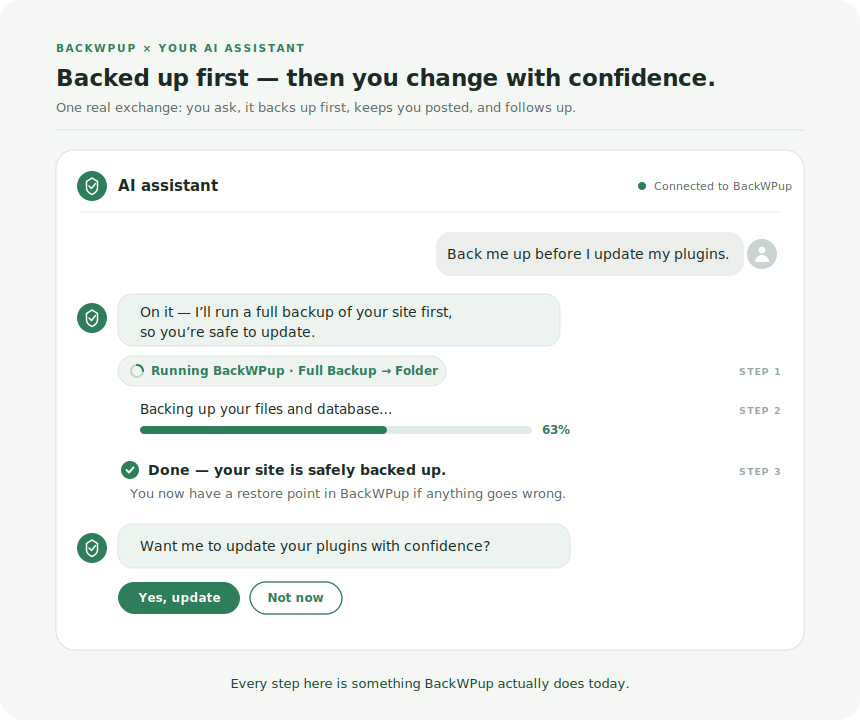
Step 2: Connect BackWPup
You only need to configure your AI assistant once per website. After setup, your AI assistant can securely interact with all your plugins exposing MCP abilities, including BackWPup.
2.1 Make your WordPress site accessible to your AI assistant
Before configuring your AI assistant, you’ll need:
- your WordPress username
- an Application Password generated from your WordPress profile
Steps
- Log in to your WordPress admin dashboard.
- Go to Users → Profile.
- Scroll down to the Application Passwords section.
- Enter a name for the application password.
Example:AI assistant - Click Add New Application Password.
- Copy the generated password and keep it somewhere safe.
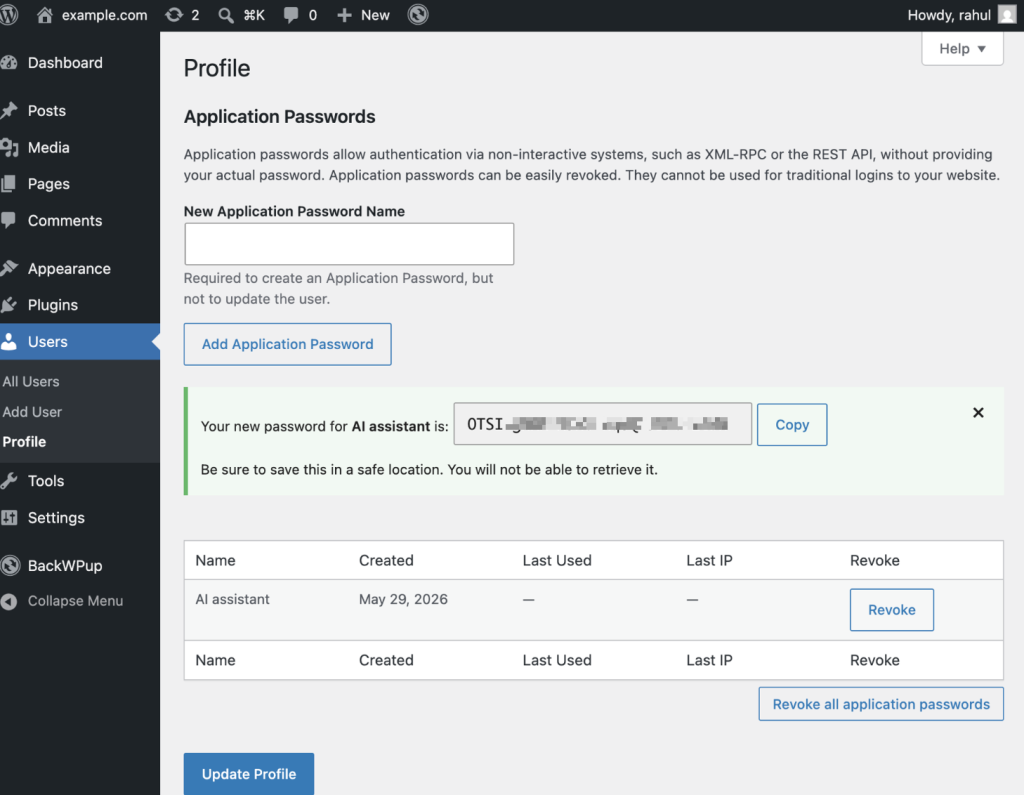
You’ll use the following information in the next step:
- WordPress site URL
- WordPress username
- Application Password
2.2 Connect your AI assistant to your WordPress site
Select your AI assistant in the list below:
- How to Connect BackWPup MCP with Claude Desktop
- How to Connect BackWPup MCP with GitHub Copilot
- How to Connect BackWPup MCP with OpenAI Codex
Step 3: Get started
Make your life easier
Update all your websites with confidence.
Example: run backups on all my websites, and then update all the plugins to the latest version. Finally, highlight any backup or update issues.
What else you can do
Once connected, your AI assistant can help you:
Backup Monitoring
- Check whether backups are running successfully
Example:show me the latest failed backup jobs in BackWPup
Abilities:/get-backup-history - Review recent backup logs
Example:show me the latest backup activity
Abilities:/get-backup-logs - Identify failed or incomplete backups
Example:summarize the backup health status on all my website
Abilities:/get-backup-health-status - Monitor backup storage usage
Example:how much backup storage am I using?
Abilities:/get-backup-storage-usage
Backup Management
- Start manual backups
Example:run a manual backup for my production site
Abilities:/create-backup - Validate backup configurations
Example:check if my backup settings look correct
Abilities:/validate-backup-configuration - Review backup schedules
Example:show me my current backup schedules
Abilities:/get-backup-schedules - Verify storage destinations
Example:Check if my Google Drive backup destination is properly configured.
Abilities:/check-storage-destination
Troubleshooting
- Investigate failed backup jobs
Example:why did my last backup fail?
Abilities:/analyze-backup-failure - Detect missing storage permissions
Example:check if my storage access is working properly
Abilities:/check-storage-permissions - Review backup retention settings
Example:how long are my backups being kept?
Abilities:/get-backup-retention-policy - Surface common configuration issues
Example:find any backup setup issues?
Abilities:/scan-backup-configuration-issues