

Resumen
Esta documentación explica cómo aprovechar las funciones de MCP con BackWPup para automatizar la gestión de copias de seguridad, supervisar el estado de los sitios web y realizar acciones directamente a través de tu asistente de IA preferido.
Esta página está dirigida a dos tipos de usuarios:
- Advanced usuarios que ya conocen los conceptos de MCP y desean conectar rápidamente BackWPup y empezar a utilizar flujos de trabajo prácticos.
- Usuarios nuevos que descubren MCP por primera vez y desean una introducción sencilla antes de empezar.
En ambos casos, encontrarás ejemplos prácticos para empezar y podrás disfrutar gestionando tu plugin a través de tu asistente de IA favorito.
Paso 1: Comprender las capacidades de MCP con BackWPup
¿Qué es el MCP?
El MCP (Model Context Protocol) permite a los asistentes de IA interactuar de forma segura con aplicaciones como los complementos de WordPress .
En lugar de navegar manualmente por el panel de control de WordPress , el MCP te permite:
- Haz preguntas en lenguaje natural
- Activar acciones de los complementos
- Recuperar los datos del complemento
- Automatizar los flujos de trabajo repetitivos
- Supervisa y gestiona tu página web más rápido
Piensa en ello como en conceder a tu asistente de IA un acceso seguro a determinadas funciones de los complementos.
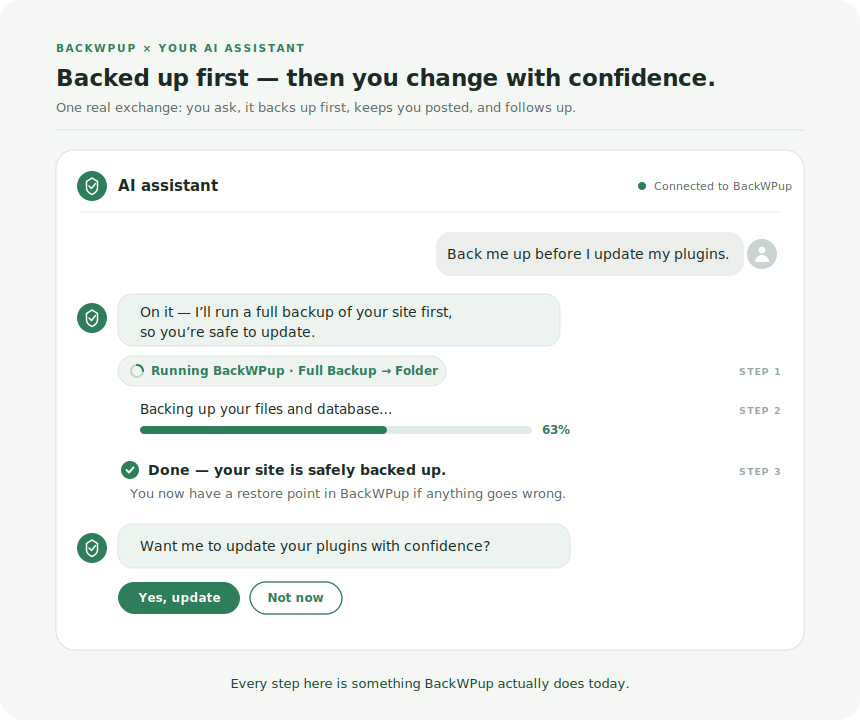
Por ejemplo
Paso 2: Conectar BackWPup
Solo tienes que configurar tu asistente de IA una vez por cada sitio web. Una vez configurado, tu asistente de IA podrá interactuar de forma segura con todos tus plugins que ofrezcan funciones MCP, incluido BackWPup.
2.1 Haz que tu sitio web WordPress sea accesible para tu asistente de IA
Antes de configurar tu asistente de IA, necesitarás:
- tu nombre de usuario de WordPress
- una contraseña de aplicación generada a partir de tu perfil de WordPress
Pasos
- Inicia sesión en tu panel de administración de WordPress .
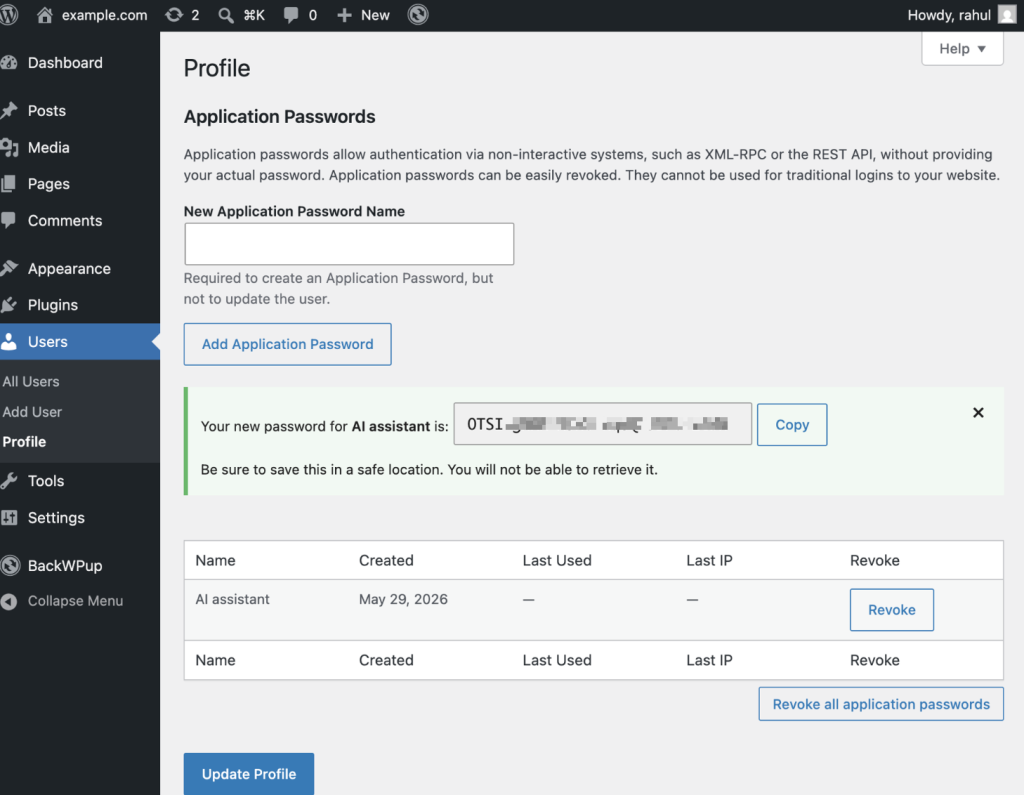
- Ve a Usuarios → Perfil.
- Desplázate hacia abajo hasta la sección «Contraseñas de aplicaciones ».
- Introduce un nombre para la contraseña de la aplicación.
Ejemplo:AI assistant - Haz clic en «Añadir nueva contraseña de aplicación».
- Copia la contraseña generada y guárdala en un lugar seguro.
En el siguiente paso utilizarás la siguiente información:
- WordPress URL del sitio web
- WordPress nombre de usuario
- Contraseña de la aplicación
2.2 Conecta tu asistente de IA a tu sitio web de WordPress
Selecciona tu asistente de IA en la siguiente lista:
- Cómo conectar un MCP « BackWPup » con Claude Desktop
- Cómo conectar un MCP de « BackWPup » con GitHub Copilot
- Cómo conectar un MCP « BackWPup » con OpenAI Codex
Paso 3: Empieza
Hazte la vida más fácil
Actualiza todos tus sitios web con total confianza.
Ejemplo: run backups on all my websites, and then update all the plugins to the latest version. Finally, highlight any backup or update issues.
¿Qué más puedes hacer?
Una vez conectado, tu asistente de IA puede ayudarte a:
Supervisión de copias de seguridad
- Comprueba si las copias de seguridad se están ejecutando correctamente
Ejemplo:show me the latest failed backup jobs in BackWPup
Habilidades:/get-backup-history - Revisar los registros de copias de seguridad recientes
Ejemplo:show me the latest backup activity
Habilidades:/get-backup-logs - Identificar copias de seguridad fallidas o incompletas
Ejemplo:summarize the backup health status on all my website
Habilidades:/get-backup-health-status - Supervisar el uso del almacenamiento de copias de seguridad
Ejemplo:how much backup storage am I using?
Habilidades:/get-backup-storage-usage
Gestión de copias de seguridad
- Iniciar copias de seguridad manuales
Ejemplo:run a manual backup for my production site
Habilidades:/create-backup - Validar las configuraciones de copia de seguridad
Ejemplo:check if my backup settings look correct
Habilidades:/validate-backup-configuration - Revisar los horarios de las copias de seguridad
Ejemplo:show me my current backup schedules
Habilidades:/get-backup-schedules - Comprobar los destinos de almacenamiento
Ejemplo:Check if my Google Drive backup destination is properly configured.
Habilidades:/check-storage-destination
Solución de problemas
- Investigar las tareas de copia de seguridad fallidas
Ejemplo:why did my last backup fail?
Habilidades:/analyze-backup-failure - Detectar permisos de almacenamiento que faltan
Ejemplo:check if my storage access is working properly
Habilidades:/check-storage-permissions - Revisar la configuración de retención de copias de seguridad
Ejemplo:how long are my backups being kept?
Habilidades:/get-backup-retention-policy - Problemas habituales de configuración de Surface
Ejemplo:find any backup setup issues?
Habilidades:/scan-backup-configuration-issues