

In questo articolo spieghiamo come collegare il tuo spazio di archiviazione cloud Microsoft OneDrive a BackWPup e forniamo anche un esempio su come eseguire un backup su OneDrive.
Registrazione dell'applicazione
Per salvare un backup del tuo sito WordPress su OneDrive, devi innanzitutto disporre di un'applicazione OneDrive funzionante.
Per prima cosa, accedi al Microsoft Azure portale.
Se non disponi di un account Microsoft, ti verrà richiesto di crearne uno nuovo.
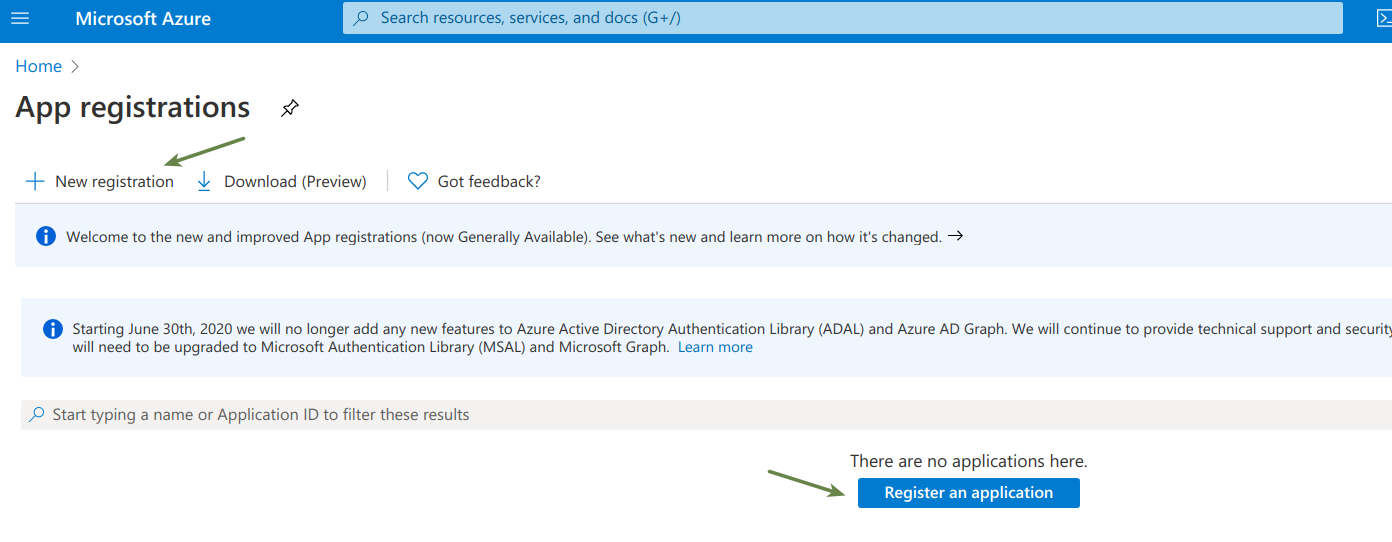
Una volta effettuato l'accesso al portale Microsoft Azure , registra la tua domanda utilizzando i link disponibili, come illustrato nella figura sottostante.
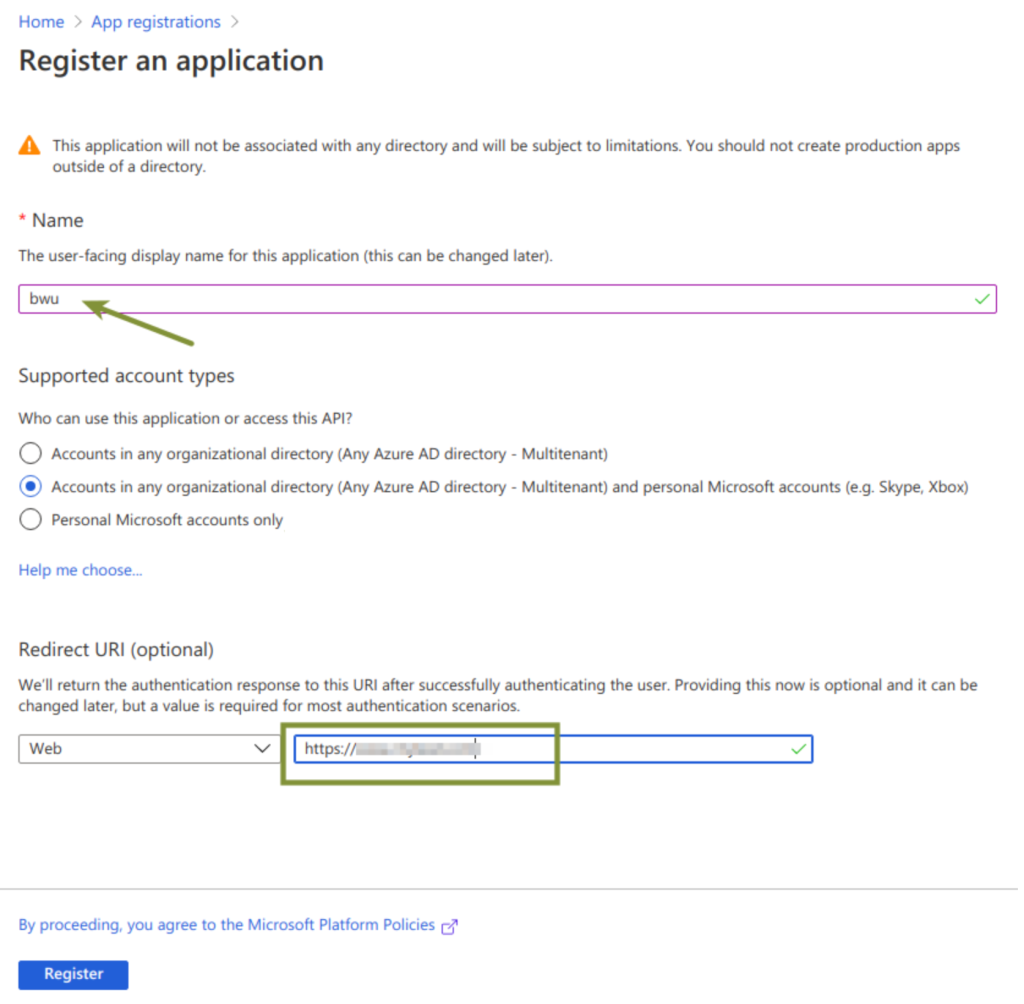
Verrà reindirizzato alla pagina di registrazione: inserisca i dati richiesti e ottenga un ID applicazione che identificherà la sua applicazione nelle chiamate all'API .
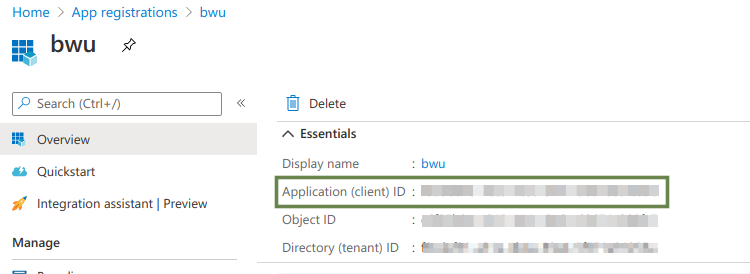
Dopo la registrazione, potrai trovare l' ID cliente nella panoramica dell'applicazione:
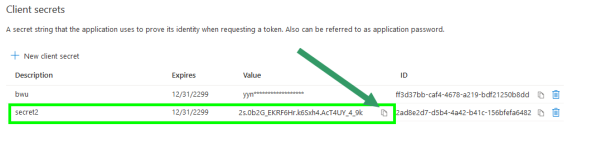
Il passo successivo consiste nel creare il segreto client per collegare BackWPup a OneDrive.
Nella pagina “Applicazione” creata nei passaggi precedenti, vai a Certificati e segreti e fare clic sul Nuovo segreto client .
Si aprirà un modulo: inserisci i valori richiesti e crea il segreto client.
Configurare la chiave " API " e reindirizzare l'URL
Nel backend di WordPress , vai alla sezione BackWPup → Archiviazione dei lavori → aggiungi l' ID cliente e segreto client dell’applicazione OneDrive in OneDrive API Chiavi.
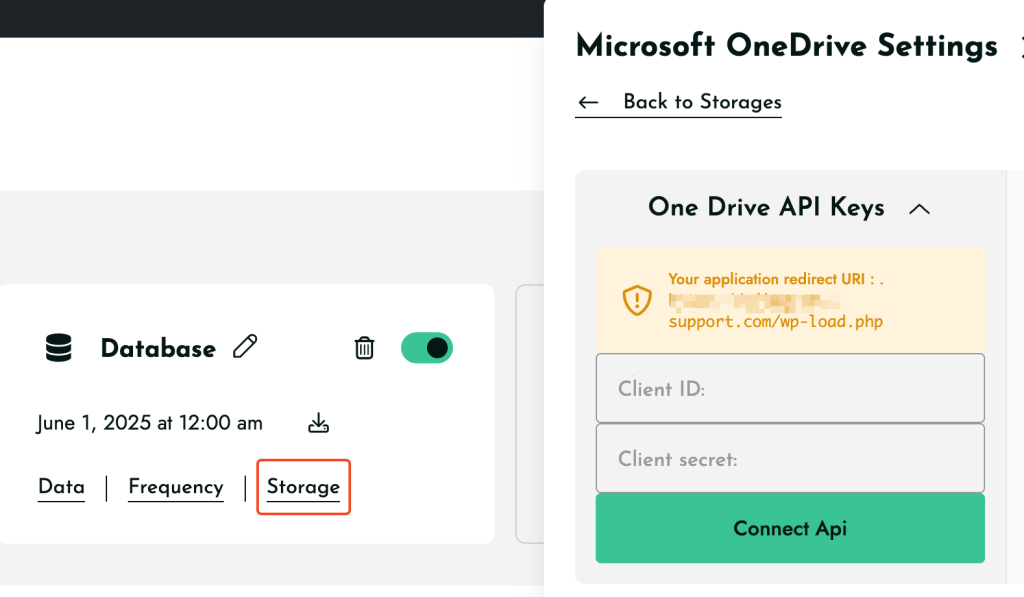
A questo punto, copia l'URL di reindirizzamento dalla sezione.
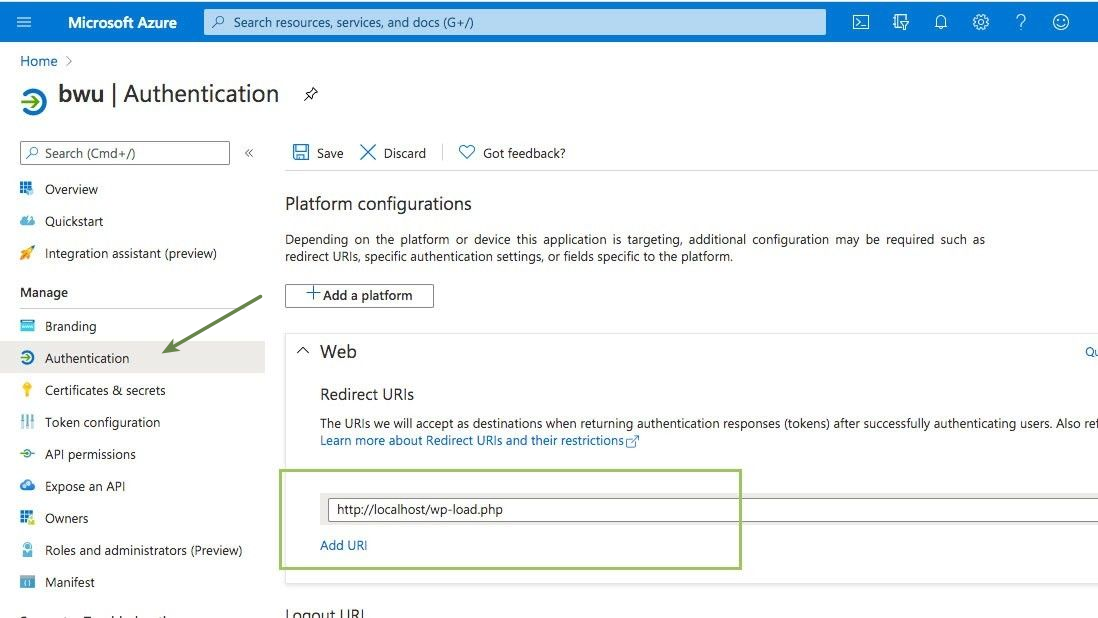
Quindi, incollalo nell'applicazione " OneDrive " all'indirizzo Microsoft Azure, accedendo alla sezione link "Autenticazione" nel menu a sinistra, quindi inseriscilo nel campo URL di reindirizzamento :
Eseguire un processo in BackWPup: Creare l'archivio di backup in OneDrive
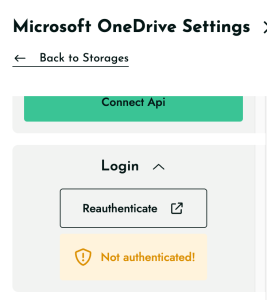
L'applicazione è stata configurata correttamente nelle sezioni precedenti; ora deve solo essere autenticata.
Vai alla scheda: OneDrive scheda e, nel campo Login, clicca su Reautentica .
Finalmente hai un lavoro pronto per essere eseguito!
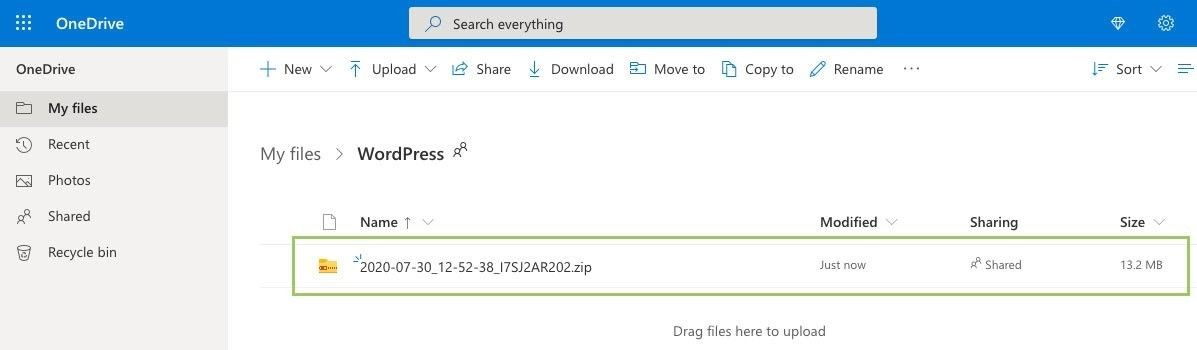
Una volta completata con successo l'operazione, dovresti vedere il file di archivio di backup caricato correttamente nella tua OneDrive app: Archivio di backup su OneDrive.
Risoluzione del problema relativo all'indisponibilità della funzione “Nuova registrazione”
Se utilizzi un account Microsoft personale (come Gmail, Outlook, Hotmail, ecc.), potresti non vedere immediatamente il pulsante "Nuova registrazione " in Azure.
Microsoft richiede ora che ogni account disponga di una directory Azure attiva prima di poter creare un'applicazione.
È possibile attivare una directory " free " utilizzando una delle seguenti opzioni:
Opzione 1: Creare un account Azure " free "
. In questo modo viene automaticamente creata una directory e abilitata la registrazione dell'app.
https://azure.microsoft.com/en-us/pricing/purchase-options/azure-account
Opzione 2: Iscriviti al programma Microsoft 365 Developer di free
In questo modo viene creata anche una directory e viene abilitata la registrazione delle app.
https://developer.microsoft.com/microsoft-365/dev-program
Dopo aver completato una delle due opzioni, accedi nuovamente al Portale di Azure e vai su:
Azure Active Directory → Registrazioni delle app
Il pulsante Nuova registrazione sarà ora disponibile e potrai proseguire con i passaggi sopra indicati.